Adjustments
Here you can perform mass uploads of Additions & deductions and link it to particular Payroll month.
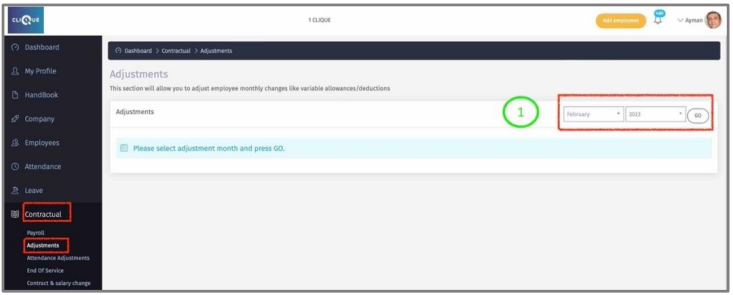
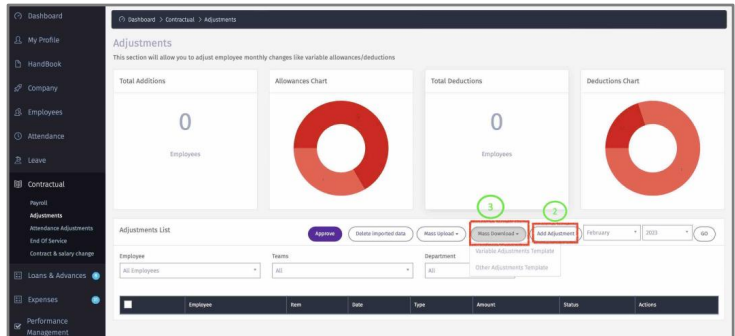
1 – Select the month & year and click “OK”.
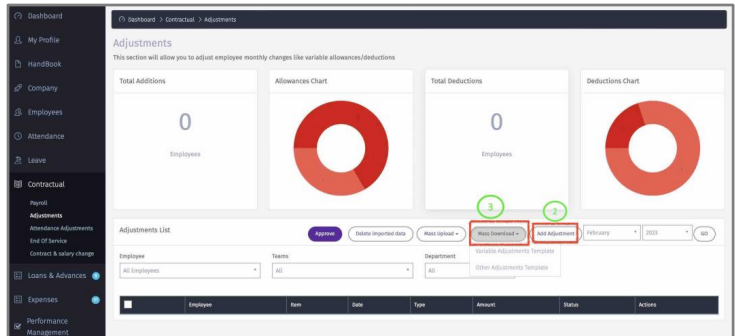
2 – Click on “Add Adjustment” button to add an addition or deduction for a particular
employee. Similar to Point 10.
3 – Click on “Mass Download” to get the following templates:
o Variable Adjustments Template: This applies ONLY to MONTHLY variable allowances (e.g., Sales Commission) or Deductions (e.g., Income tax) that are included in employee monthly salary.
o Other Variable Adjustments Template: This template to add any sort of ad-hoc additions and deductions.
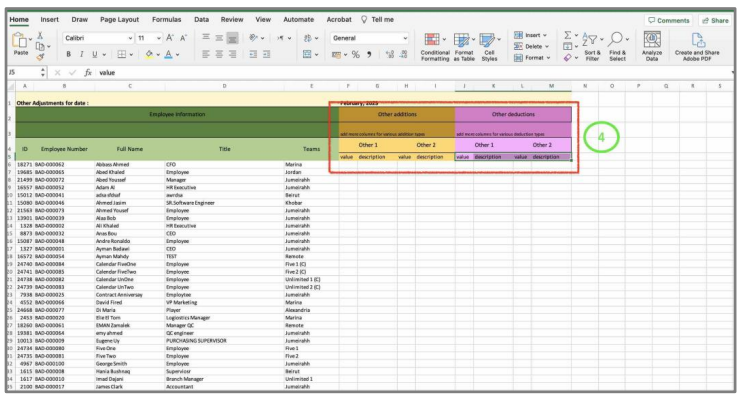
4 – The template will provide you the list of all your employees and two additions &
Deductions.
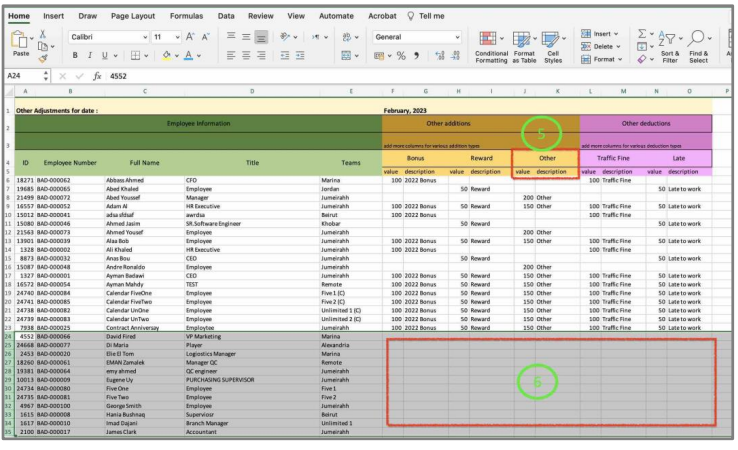
5 – Copy and Paste to add extra additions and deductions. (Make sure that you only copy and paste the same format).
6 – Delete all employees rows if they have no additions or deduction.
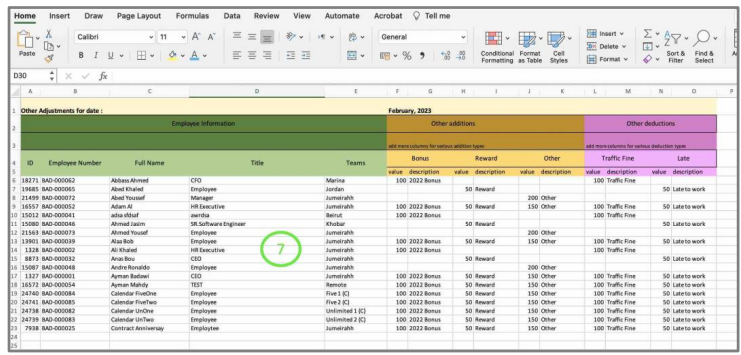
7 – The final sheet should look like this with only the employees that have an addition or deduction.Make sure not to tamper with the employee data on the left side of the sheet. Once done save the sheet.
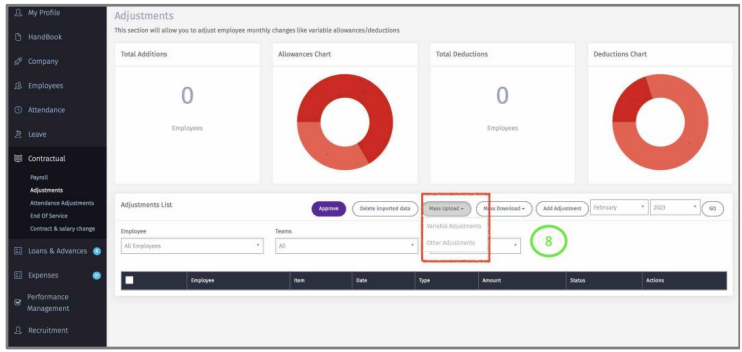
8 – Click on “Mass Upload” Other adjustments and upload the saved sheet.
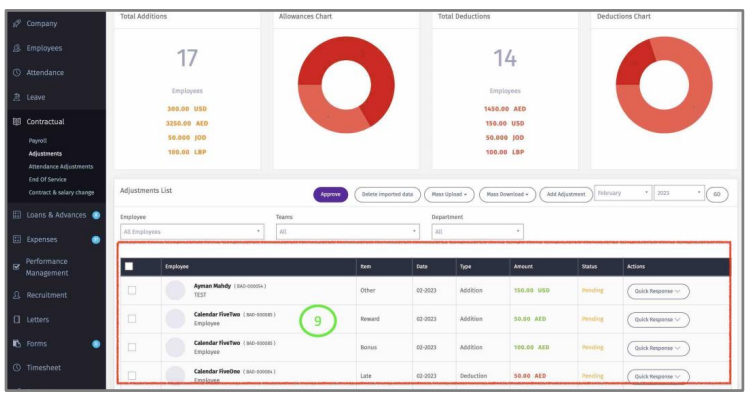
9 – All the data in the excel sheet will be displayed here.
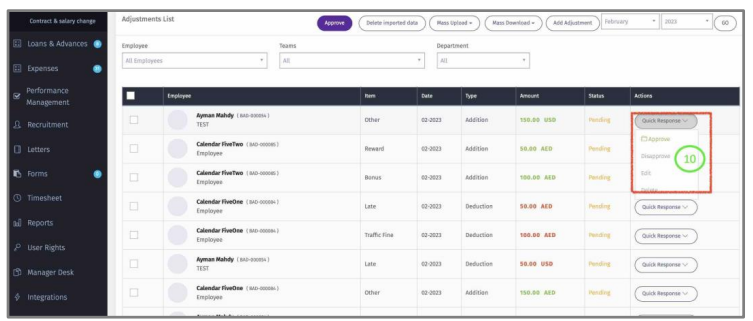
10 – Click on “Quick Response” to:
o Approve: Added to employee payroll.
o Disapprove: if this pay element is approved, you can disapprove and remove from
payroll provided that the payroll is not Approved or closed.
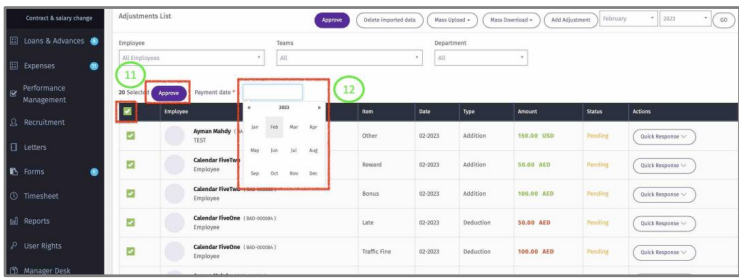
11 – Check the box to Approve all pay elements that are displayed on this page.
12 – Select the Payroll Month that you want these pay elements to be added to.
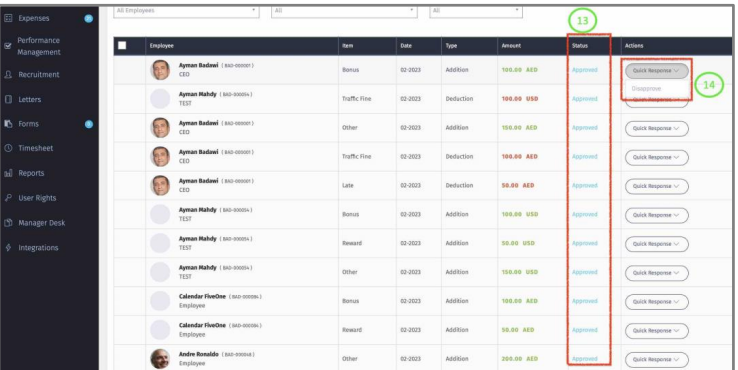
13 – Once Approved, the status of those items will change accordingly.
14 – Click on “Quick Response” to disapprove and remove from payroll provided that the
payroll is not Approved or closed. If Payroll is Approved, then you need to disapprove the
payroll for employee(s) and then disapprove this addition or deduction.