Attendance Adjustments
Here you can view all attendance pay elements that were generated during the month.
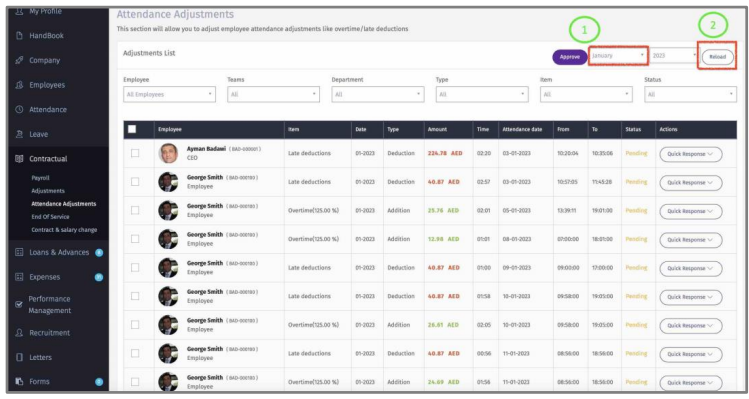
1 – Select the month & year.
2 – The overtime and deductions will be displayed. Yet, if data is not displayed, click “Reload” to generate the data.
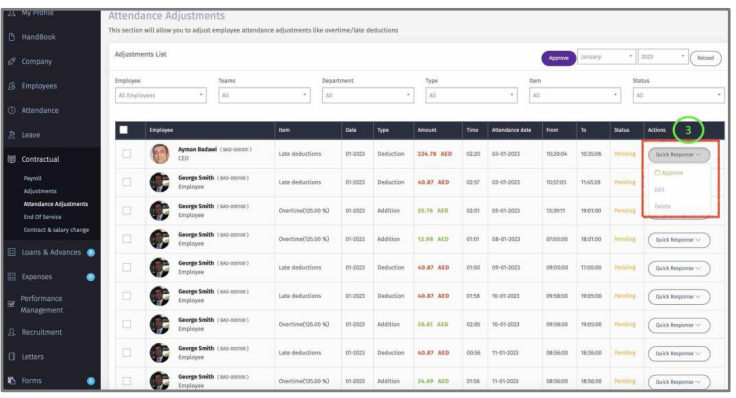
3 – Click on “Quick response” to approve, edit or delete this pay element.
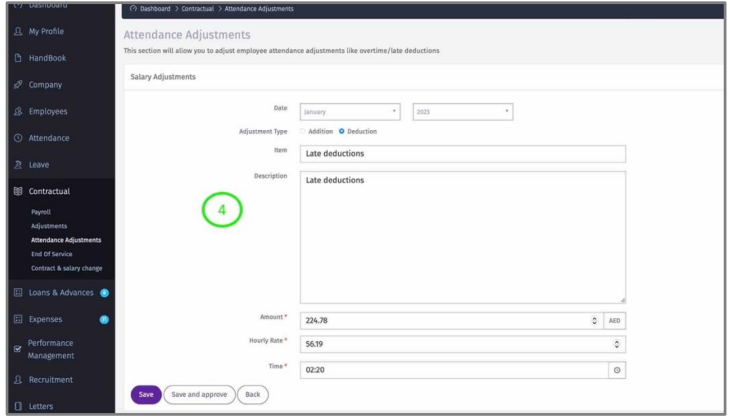
4 – Click “Edit” to amend the data.
5 – Check the box to Approve all pay elements that are displayed on this page.
6 – Select the Payroll Month that you want these pay elements to be added to.
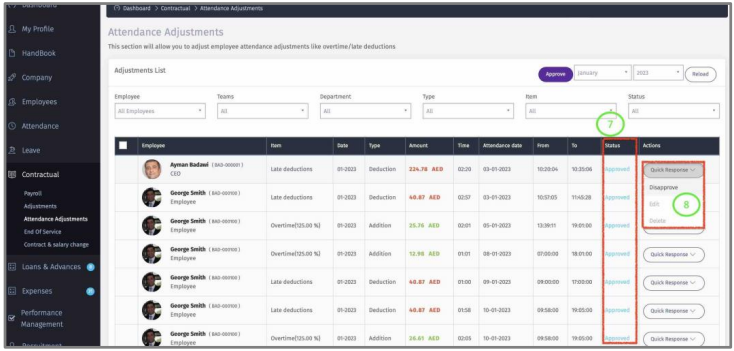
7 – Once Approved, the status of those items will change accordingly.
8 – Click on “Quick Response” to disapprove and remove from payroll provided that the
payroll is not Approved or closed. If Payroll is Approved, then you need to disapprove the
payroll for employee(s) and then disapprove this addition or deduction.