Off Boarding
Here you can initiate the off Boarding process for employee that is leaving the company.
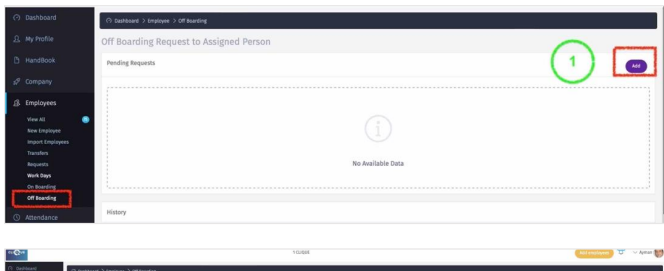
1 - Click on “Add” to initiate an Off Boarding Process.
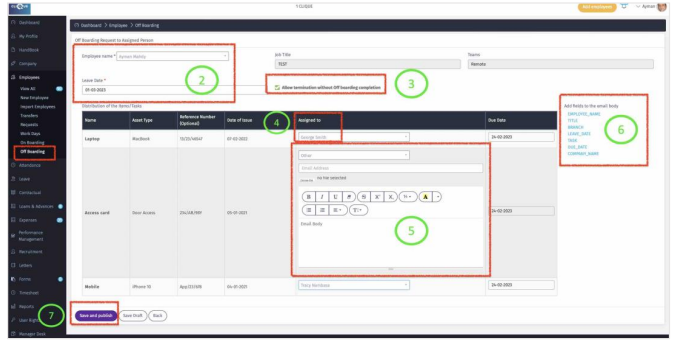
2 – Select the name of the employee that is leaving the company from the dropdown list, and enter the last working day “Leave Day”.
3 – If you check the Box “Allow termination without Off boarding completion”, then you will be able to complete the termination of the employee without finishing the Off Boarding Process. If the Box is Unchecked, then termination process (End of Service) will not be allowed if the Off Boarding process is not closed.
4 – All existing assets will be displayed on the screen. Assign Item/Task to an existing employee from the dropdown list.
5 – Select “Other” from the dropdown list to enter the email address, upload a
document, and add a body to the email. (This is usually used for tasks that are related to 3rd party that is not part of your company).
6 – Select from the list to add to the Body of the email so the data is auto filled.
7 – Click on “Save and Publish” so an email and notification are sent to all employees that are assigned to a task in this Off Boarding process. (Similar to the On Boarding email & Notification).
Employee
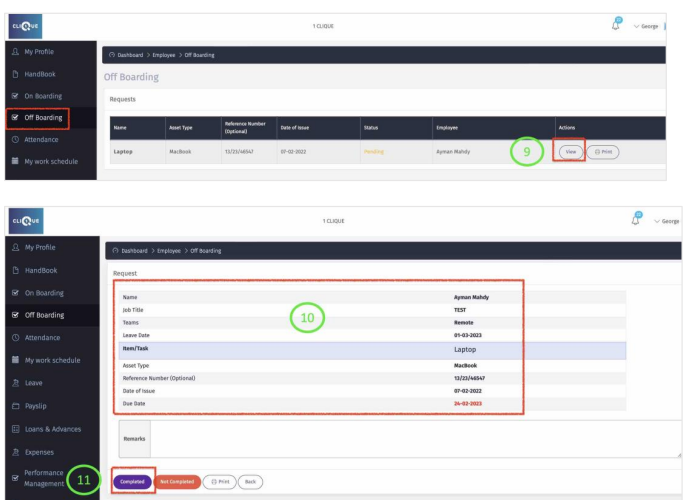
9 – Employee will login to his/her account to view and complete the task.
10 – Employee can view the request.
11 – Click on “Complete” to notify the process owner that it is completed.
Process Owner
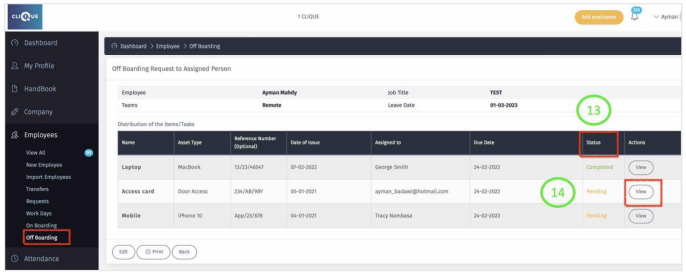
13 – The creator of the Off Boarding process can view the progress of all the tasks.
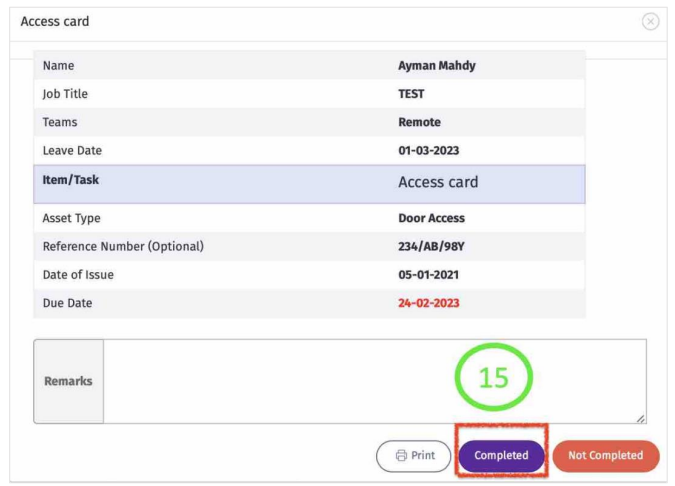
14 – They can complete pending tasks by Clicking “View”.
15 – Click on “Complete”.
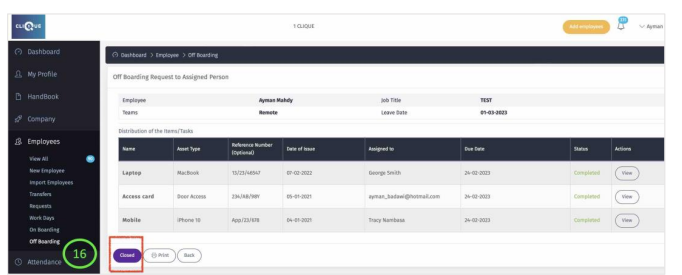
16 – Once All Task are marked as “Complete”, a “Close” button appears, click on it to close the process.