On Boarding
Here you can initiate the on boarding process for new joiners. This process can be initiated before the
new employee joinHere you add a list all the Items/Task that the company include in the On Boarding Process.
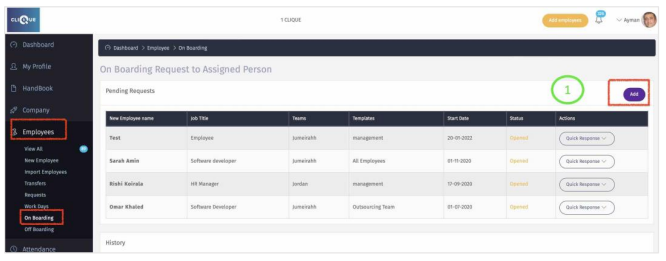
1 - Click on “Add” to initiate an On Boarding Process.
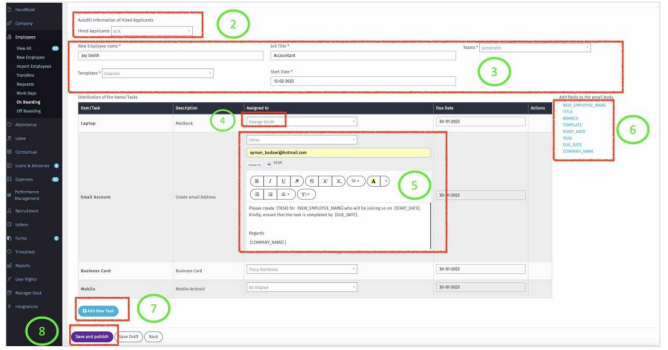
2 – Select the name of the new employee if the recruitment module was used to hire.
3 – Add the new employee manually by filling the required fields.
4 – Once the template is selected, the default Items/Tasks will be displayed.Assign Item/Task to an existing employee from the dropdown list.
5 – Select “Other” from the dropdown list to enter the email address, upload a document such as Purchasing Order and add a body to the email. (This is usually used for tasks that are related to 3rdparty that is not part of your company).
6 – Select from the list to add to the Body of the email so the data is auto filled.
7 – Add an Item if not part of the default List.
8 – Click on “Save and Publish” so an email and notification is sent to all employees that are assigned to a task in this On Boarding process.
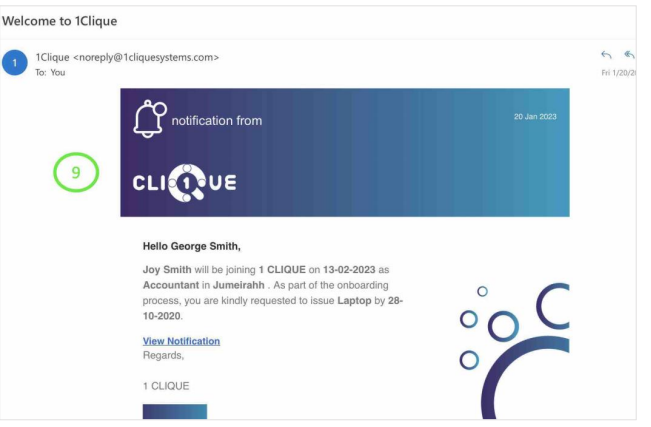
9 – An email/notification is sent to all employees that are assigned to a task in this On Boarding process. Employee will login to his/her account to view and complete the task.
See point 1
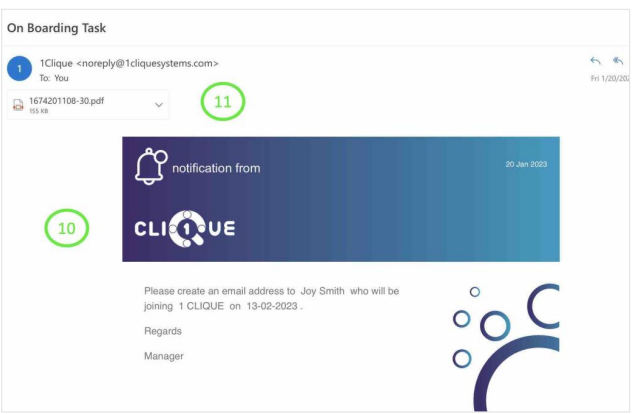
10 – An Email is sent to the 3rd Party.
11 – Document is attached to the email.
Employee
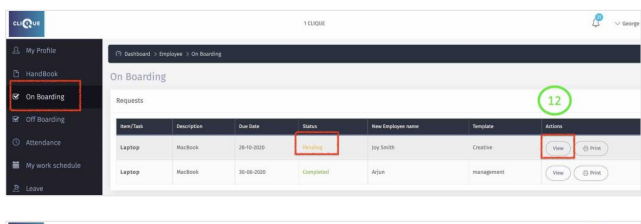
12 – Employee will login to his/her account to view and complete the task.
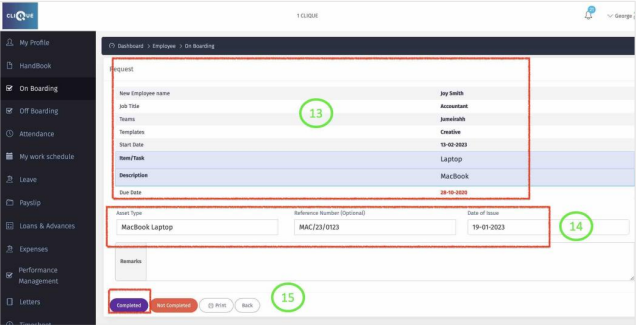
13 – Employee can view the request.
14 – Once task completed, will enter the asset/task details.
15 – Click on “Complete” to notify the process owner that it is completed.
Process Owner
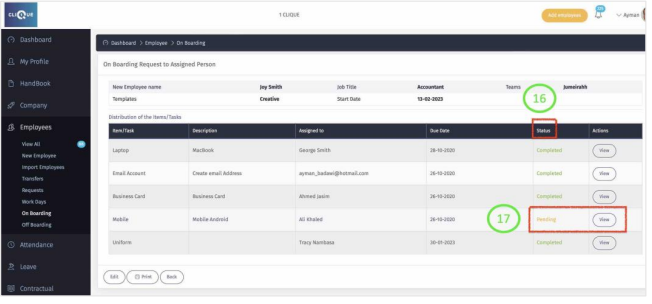
16 – The creator of the On Boarding process can view the progress of all the tasks.
17 – They can complete pending tasks by Clicking “View”.
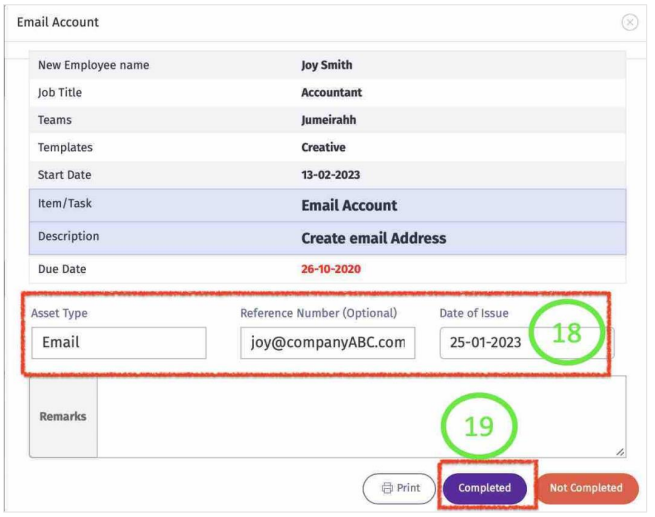
18 – File details of the Asset.
19 – Click on “Complete”.
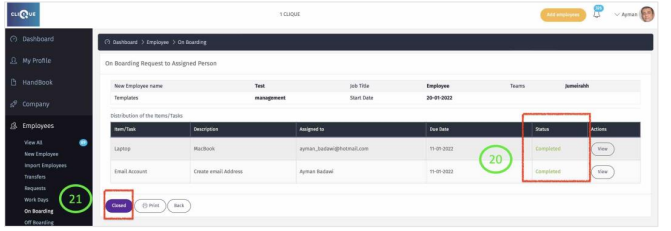
20 – Once All Task are marked as “Complete”.
21 – A “Close” button appears, click on it to close the process.
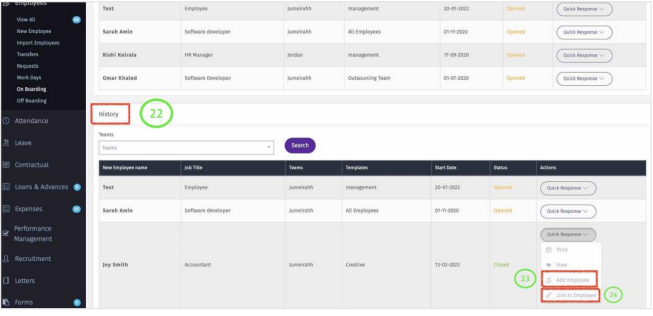
22 – To Link the assets to the new employee, Go to History. Click on Quick Response and you can link the assets to the new employee by selecting one of the following:
23 – Add New employee. This will direct you to add a new employee.
24 – If the employee is already added, then you can click on “Link to Employee”
and you can select the employee’s name to add the items to his/her assets.