Attendance App
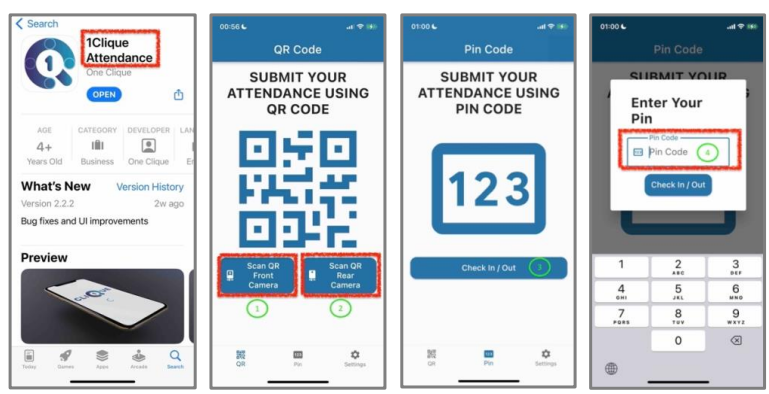
To utilize this app for Check-In & Out, the company must download on an iPad the “1Clique
Attendance” App from the mobile stores. Then the manager should login to the attendance app
using the username and password available in the Attendance Setup Page.
1 – Employee can scan the QR code from the front camera of the iPad.
2 - Employee can scan the QR code from the rear camera of the iPad.
3 – Or can use 4-Digit Pin to check-In/Out.
This feature must be activated at company level where an the 1CLIQUE Attendance app is downloaded on an iPad; and the system Admin has logged in using the credentials provided in the Attendance Setup.
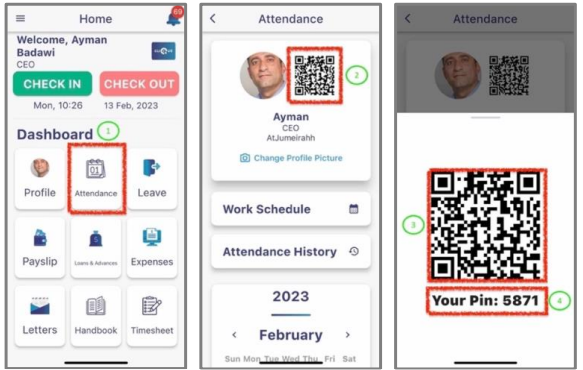
1 – Employee should login to 1CLIQUE-ESS using the same username and password that they use for the web version. Then click on the Attendance Card.
2 – The employee can click on QR image.
3 – The QR Code will be displayed.
4 -The Pin number is displayed.
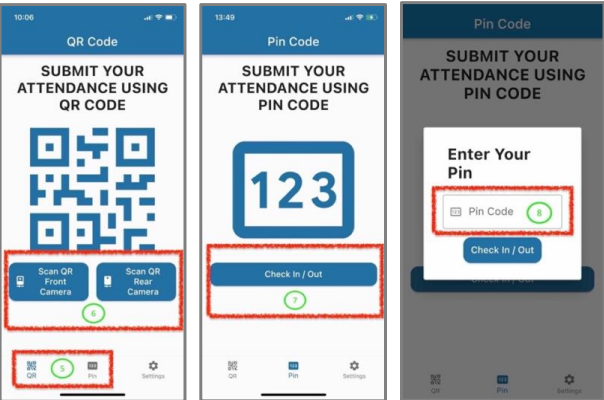
5 – Employee should access the Attendance App on the iPad, and click on one of following methods to record attendance:
o QR (To scan QR).
o Pin (Enter the 4-digit Pin Code).
6 – If QR is selected, then employee will select the desired camera, then scan the QR. A
confirmation message will appear.
7 – If Pin is selected, then the Pin Code screen will appear. Click on “Check In/Out”
button.
8 – Enter the 4 digits and click on “Check In / Out” button. Confirmation message will appear.