Create a New Employee
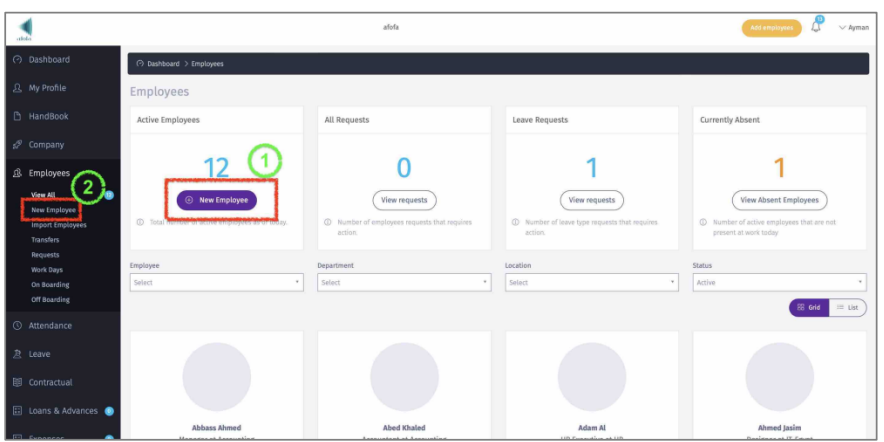
To Add a new employee, click on one of the following as displayed:
1 – “New Employee” on dashboard.
2 – “New Employee” under the Employees menu.
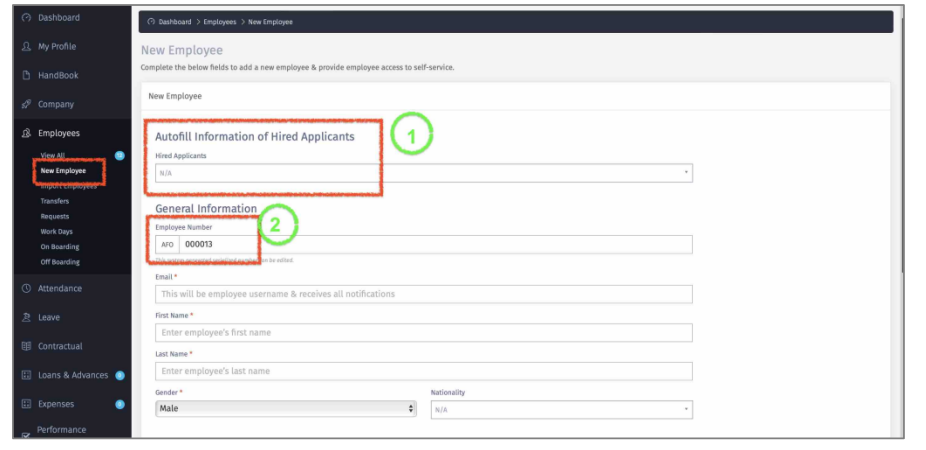
Complete the New Employee information as displayed in the bellow:
1 – If you the new employee went through the Recruitment Module process, then you will find it in this dropdown list. If not, then point 2.
2 – Complete the data required.
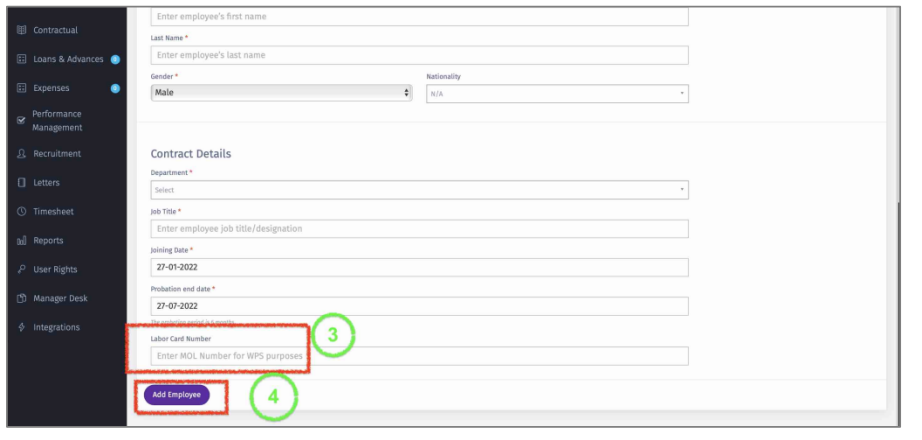
3 – This field is required if the employee is based in UAE and the salary is paid through WPS.
4 – Once completed, click on “Add Employee” and the employee will be added to the platform.
This button will also trigger an Account activation email (email address added in this form) that will be sent to the employee to create a password.