Employee
Here an employee can submit an Expense Report from his/her account. Expense report can have a one expense or multiple ones.
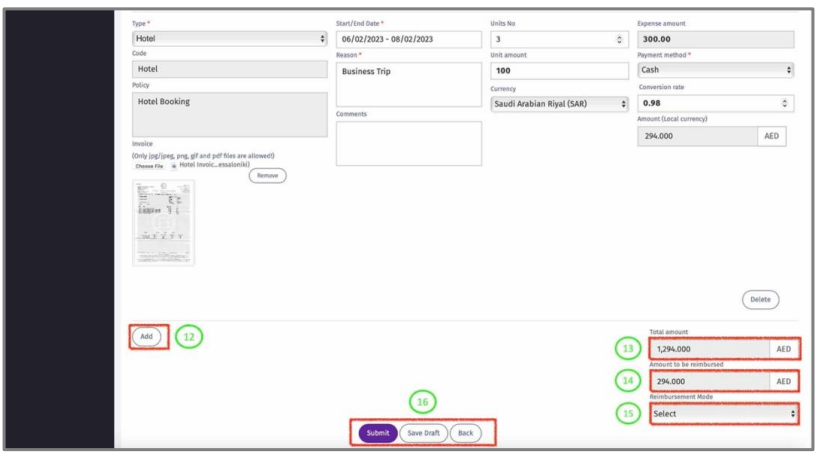
1 – View pending request that were submitted.
2 – View history of submitted Expense reports.
3 – Click “New Expense report” to prepare and request a new Expense report.
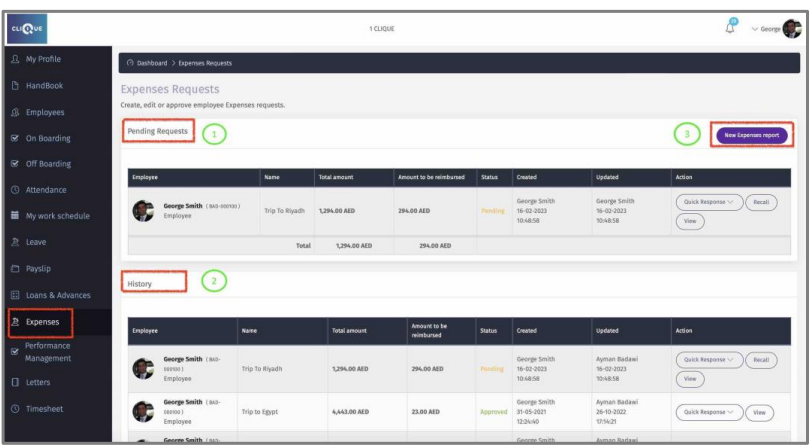
4 – Enter the name of the Expense report.
5 – Select the Expense type from the dropdown list.
6 – Enter the date of the invoice, along with the reason.
7 – Add the number of units and the amount per unit. (Example: 3 nights in a hotel. AED 100 per
night. The unit is 3 and the amount is 100).
8 – Select the currency of the Invoice. If the currency of the invoice is different from the currency of the employee’s Salary, the amount will be converted accordingly. The
conversion rate can be edited if required.
9 – Select the Payment method. How the invoice was paid.
10 – Upload the invoice.
11 – Click “Delete” to remove the expense.

12 – Click “Add” to add another Expense.
13 – Total amount of the expenses added in the report will be displayed.
14 – Total reimbursable amount to the employee will be displayed.
15 – Select the Payment Mode from the dropdown list. If Employee Select “payroll” then the amount will be added to employee payroll run. If “Outside Payroll” then the employee is requesting to be reimbursed not through the payroll run.
16 – Click “Submit” to send the request to manager. Click ‘Save Draft” to retain the request for future update.