Manager
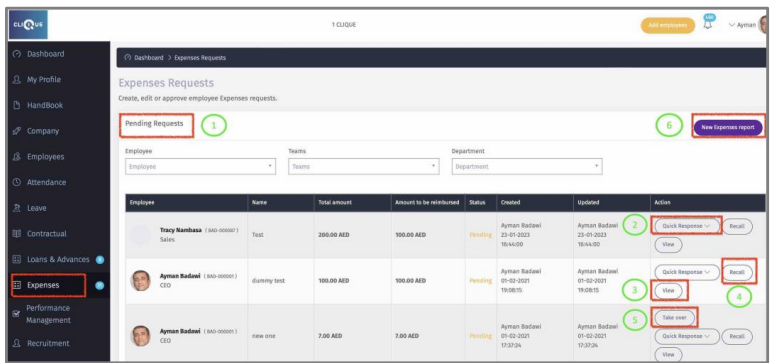
Here Manager/HR can view and attend to requested Expenses Reports reimbursement.
1 – View pending request that were submitted.
2 – Select “Quick Response” to select option (Approve/Reject/Print).
3 – Click “View” to display the Expense report details.
4 – Click “Recall” to change the status of the Expense Report to “Draft”.
This button will only appear if the expense report was created by the manager.
5 – Click “Take Over” to ignore 1st and/or 2nd line managers approval.
6 – Click “New Expense Report” to create a new Expense report for manager or on behalf of Employee.
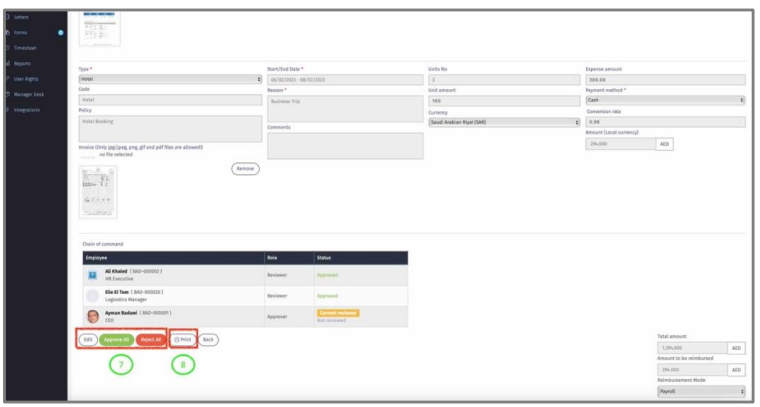
7 – Manager can Edit/Approve/Reject the Expense report .
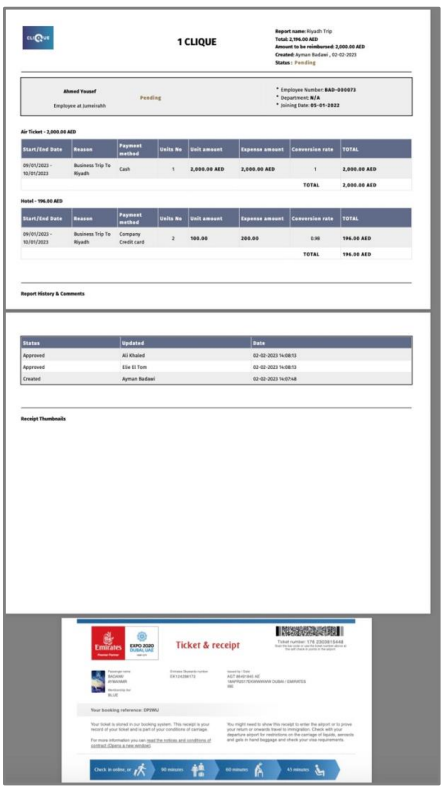
8 – Manager can print the Expense report along with the uploaded invoices.
5 – Edit: Manager can modify the advance request.
6 - Manager can:
o Print.
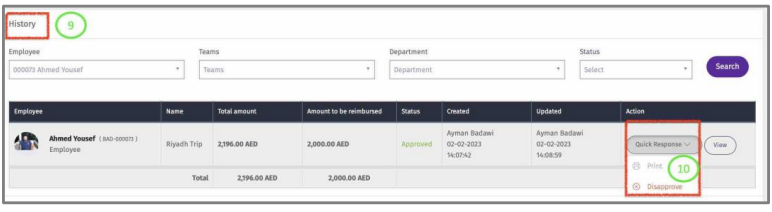
 9 – In History section manager can view all approved requests. Click on “Quick Response” to:
o Disapprove (If payment mode is “Payroll” and the payroll is closed, then the disapprove will not
remove the amount payroll run).
o Print Expense Report.