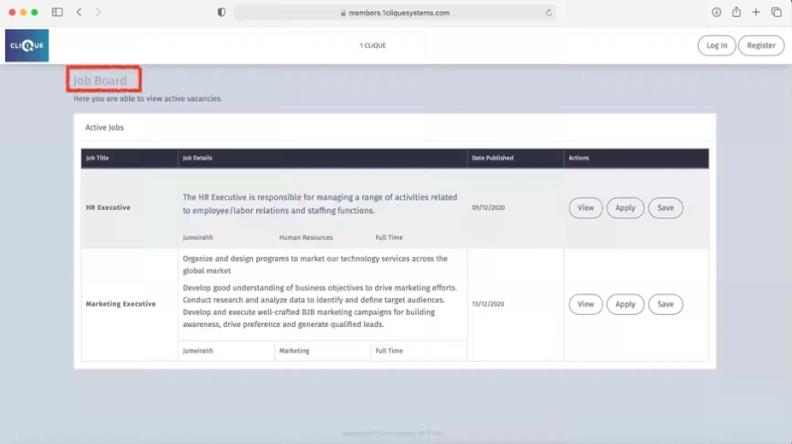
Add New Vacancy
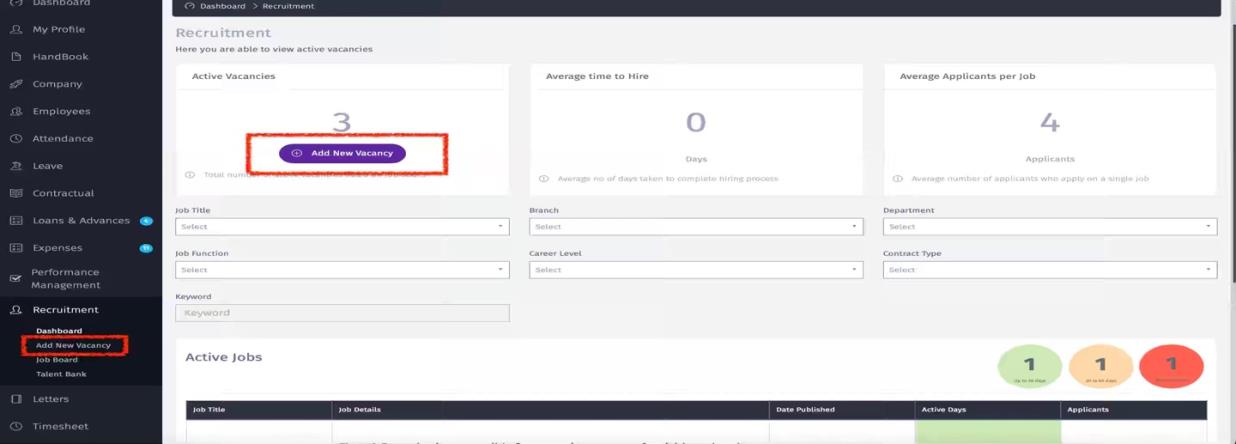
Here you can add a new job posting either by:
(1) Clicking on “Add new Vacancy” on the dashboard
(2) Clicking on “Add new Vacancy” on the sidebar menu.
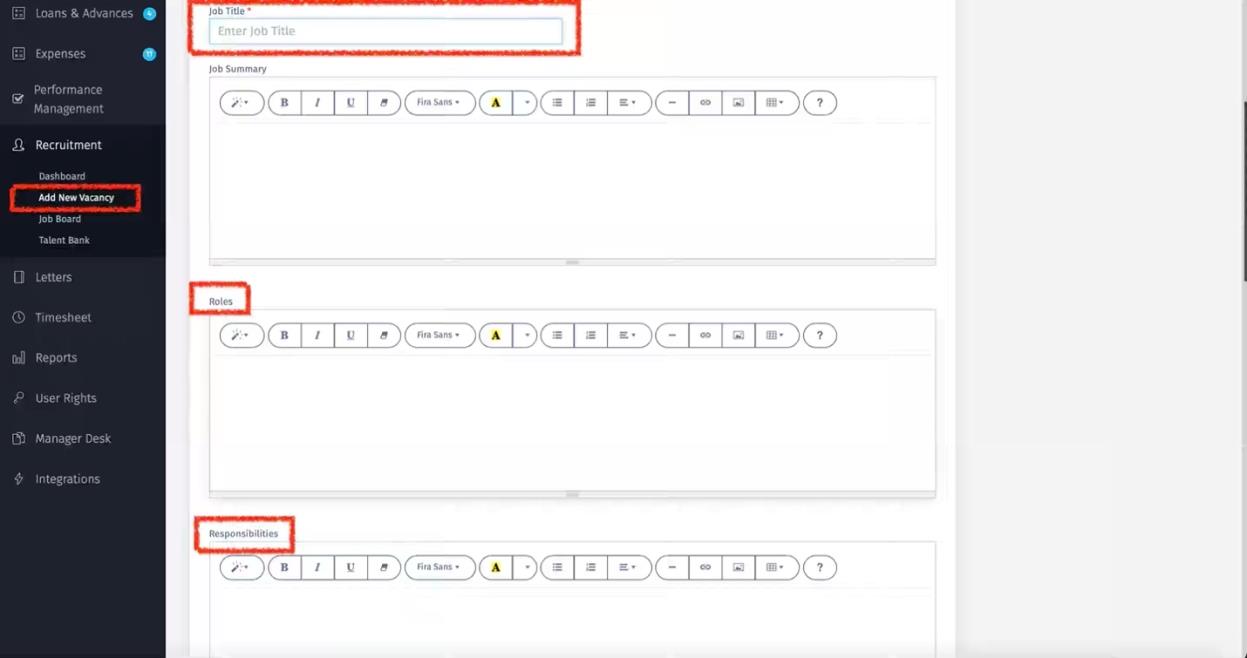
 (3) Add the Job Title and fill out all fields that are related to Job Summery, Roles, responsibilities, Skills & Qualification.
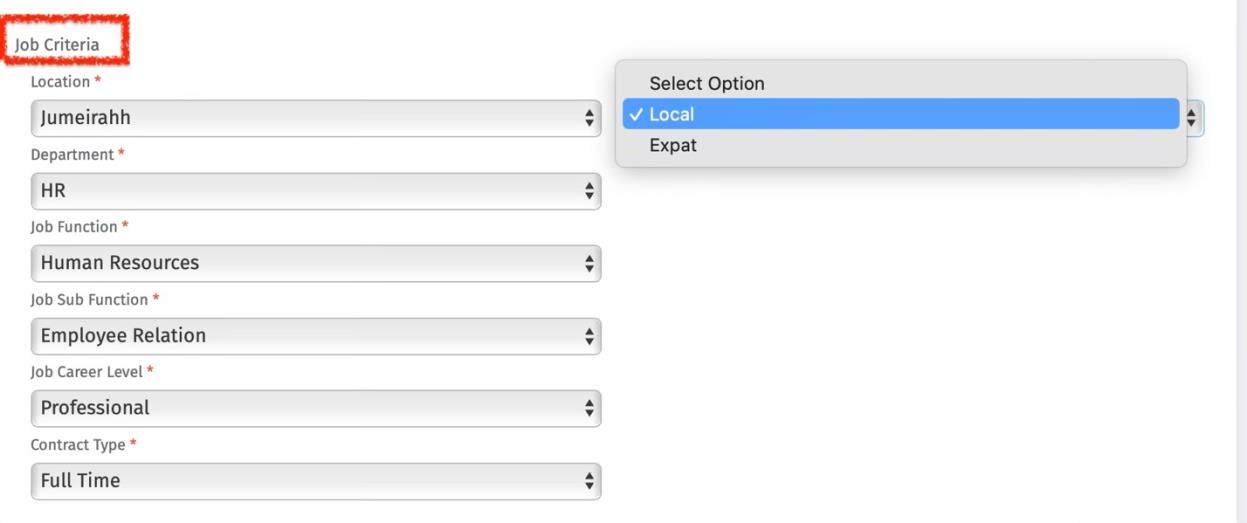
 (4) Define the job criteria for every dropdown list field.
 (5) Add questions to the job post so candidate’s answer(s) will be part of the application.
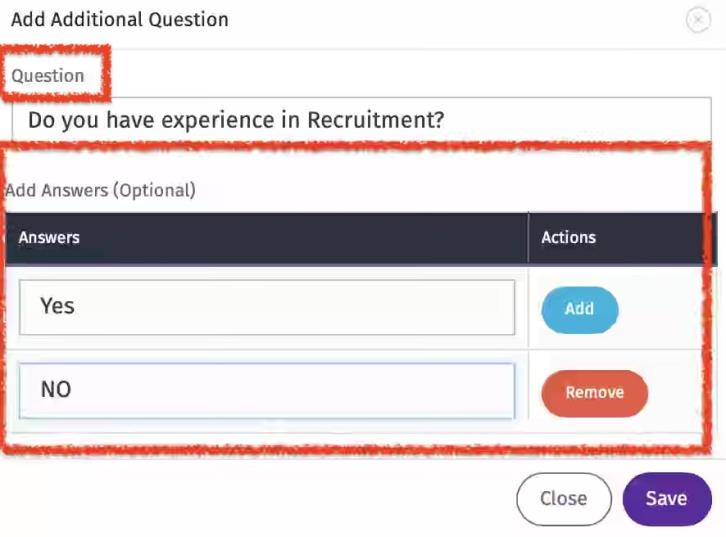
 (6) Click on ‘Add Question”, and a Pop-Up will appear
(a) Enter the question
(b) Add answers if you want an applicant to choose from a multiple-choice dropdown list:
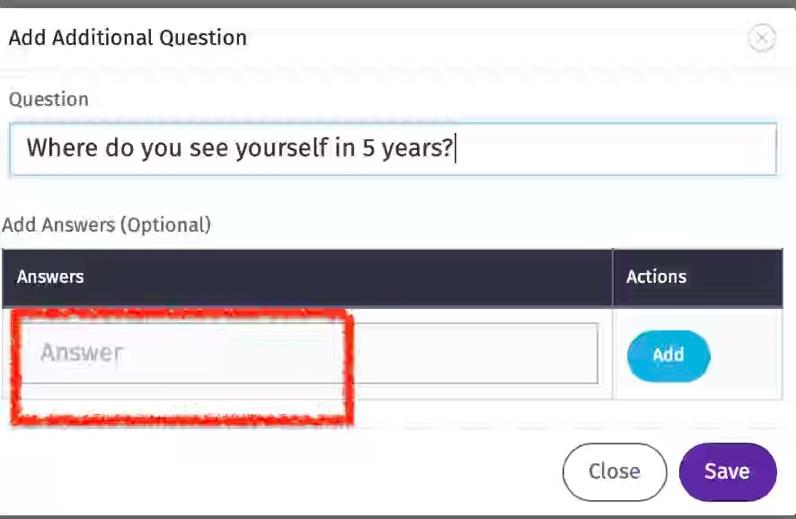
 (c) Or leave the “Add Answer” option empty so the candidate will have an open text.
 (d) Once Saved, all the questions will be displayed as part of the new vacancy.
(e) The vacancy can be posted externally for external candidates through the career page or / and Internally for existing employees to view.
(f) Add Salary, select the Currency and add a Note.
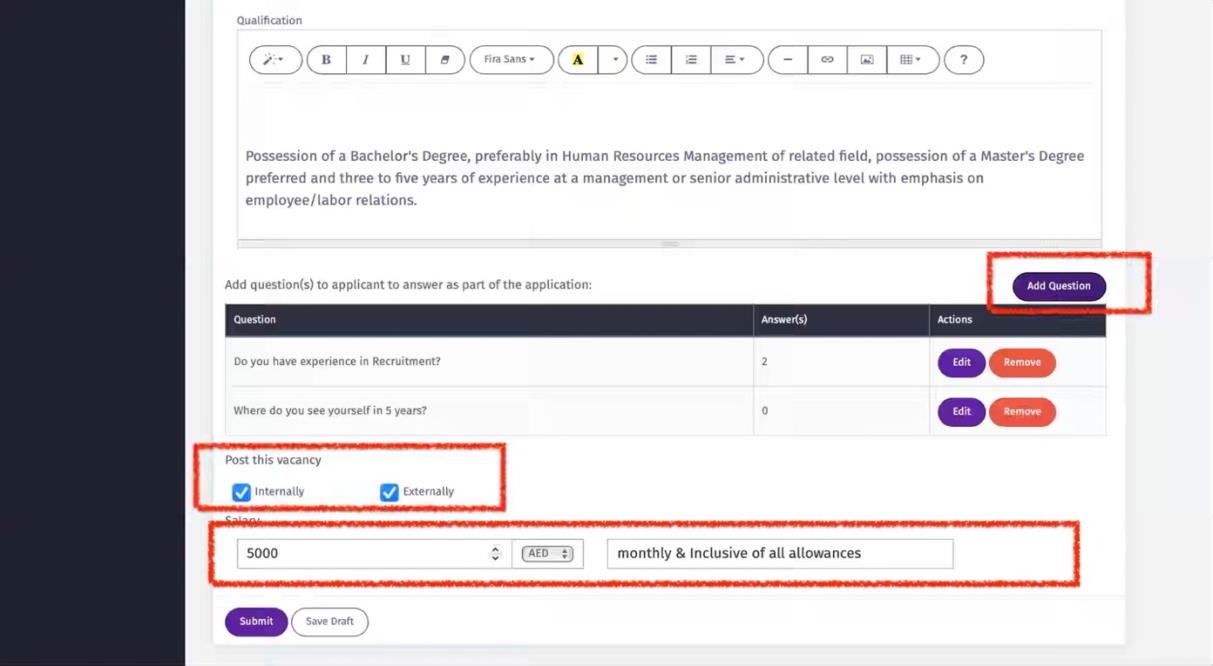 (g) Save Draft: You can Save a draft to edit later on
(h) Submit to start the job posting process:
(i) The approval cycle for this job to be posted on the job board is defined in user rights/workflow/recruitment: https://members.1cliquesystems.com/dashboard/user-rights/workflow
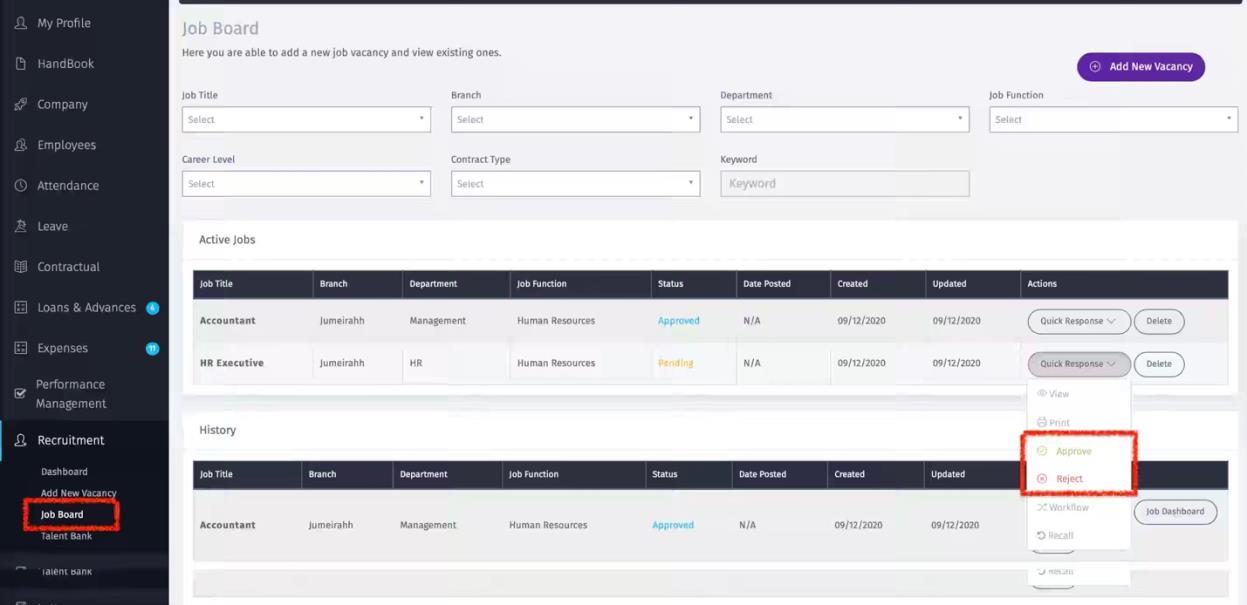
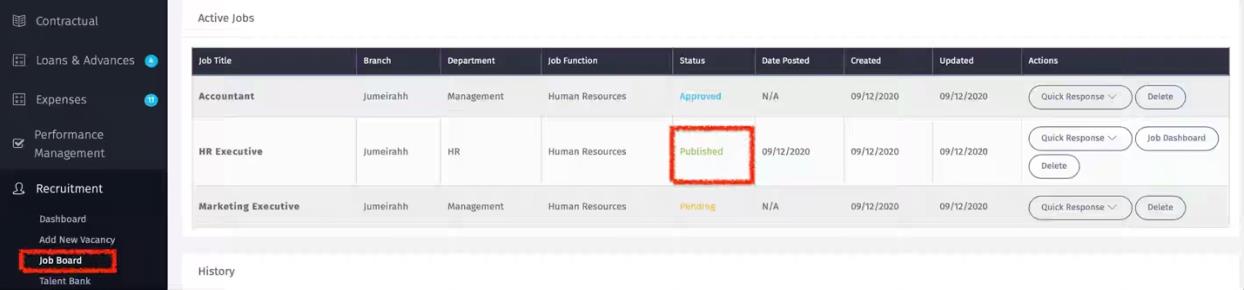
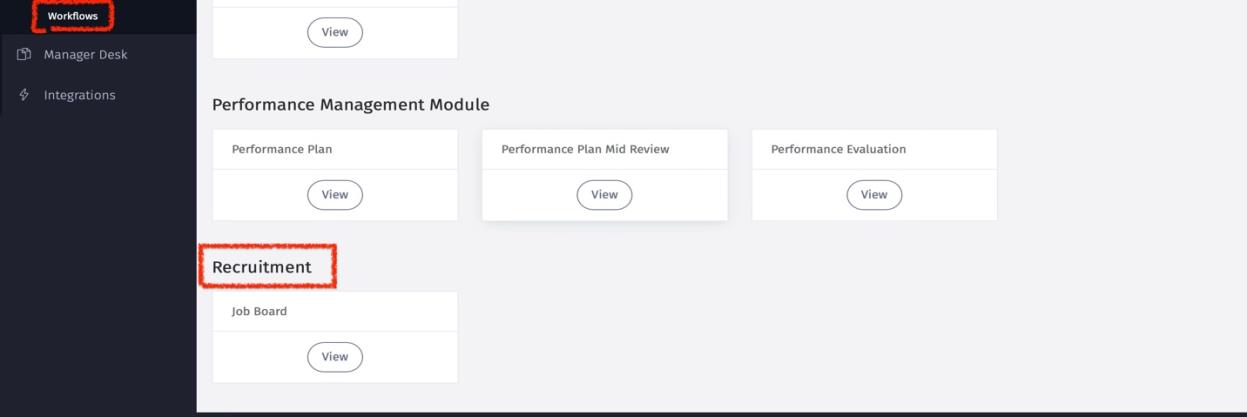 (ii) Approve Job Posting – Once the new vacancy is submitted, the job will appear in Job Board. The approver will click on “Quick Response” button to Approve/Reject.
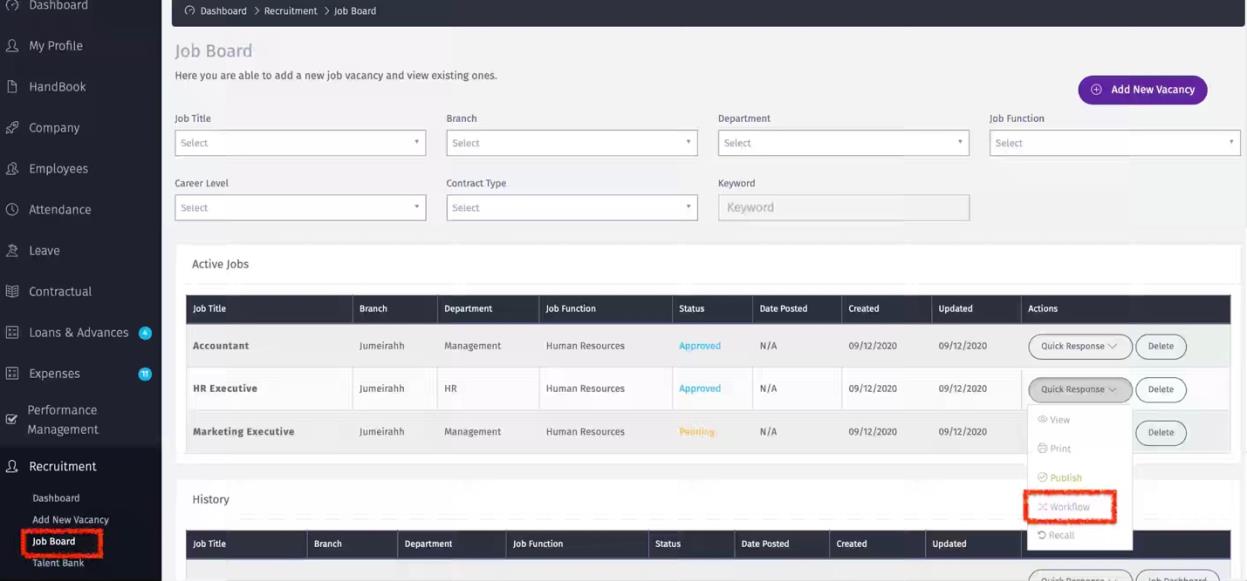
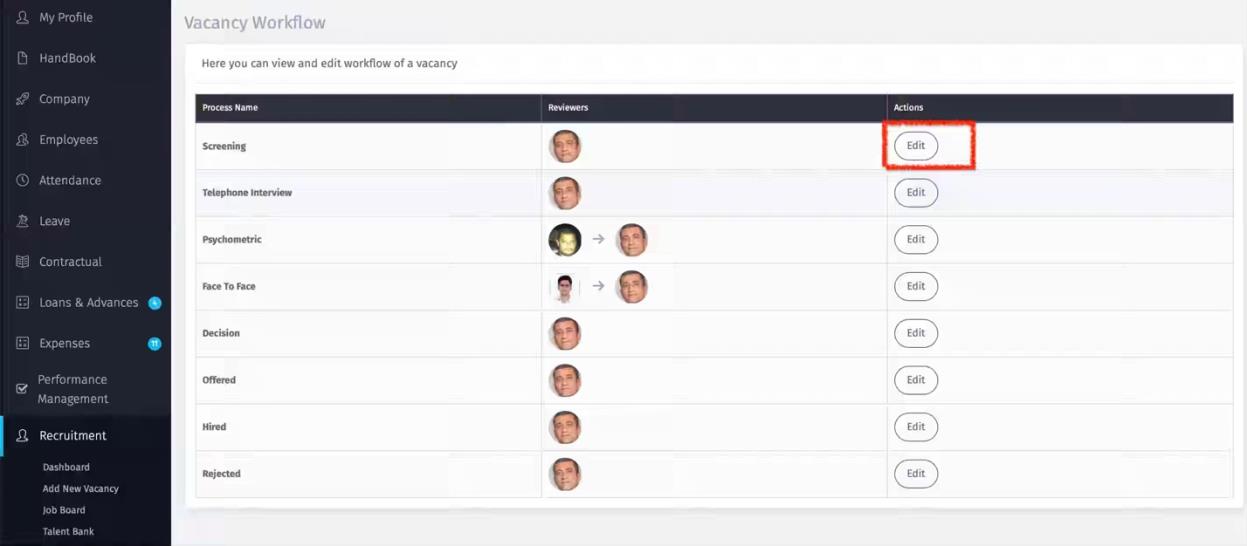
 (iii) Recruitment process Workflow – Every job has a various stakeholder involved at every stage. To define the workflow for every job posting, go to Job Board and click on “Quick response” button and select “Workflow”. Then for every step of the process select the reviewer/approver based on the list of active employees.
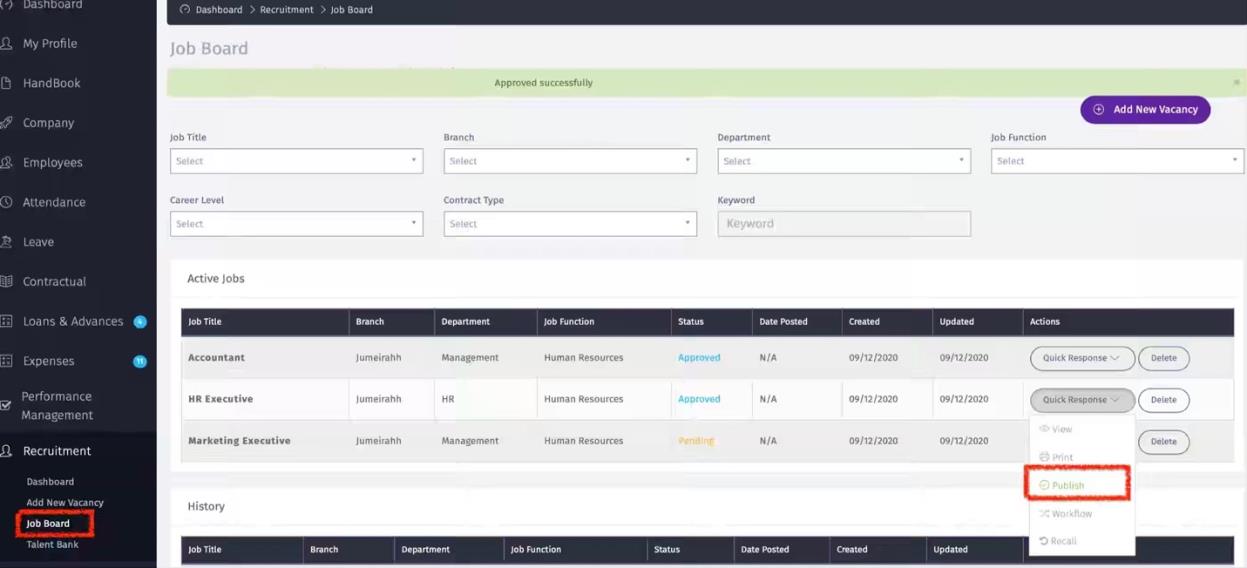
 (iv) Publish – To post the job vacancy on the carry page or internally, go to Job Board and click on “Quick Response” button and select “Publish”. The job vacancy will appear on company career page and internally.
 (v) The job vacancy will appear on company career page.