Job Dashboard
To view job dashboard and manage applicants
(1) Dashboard
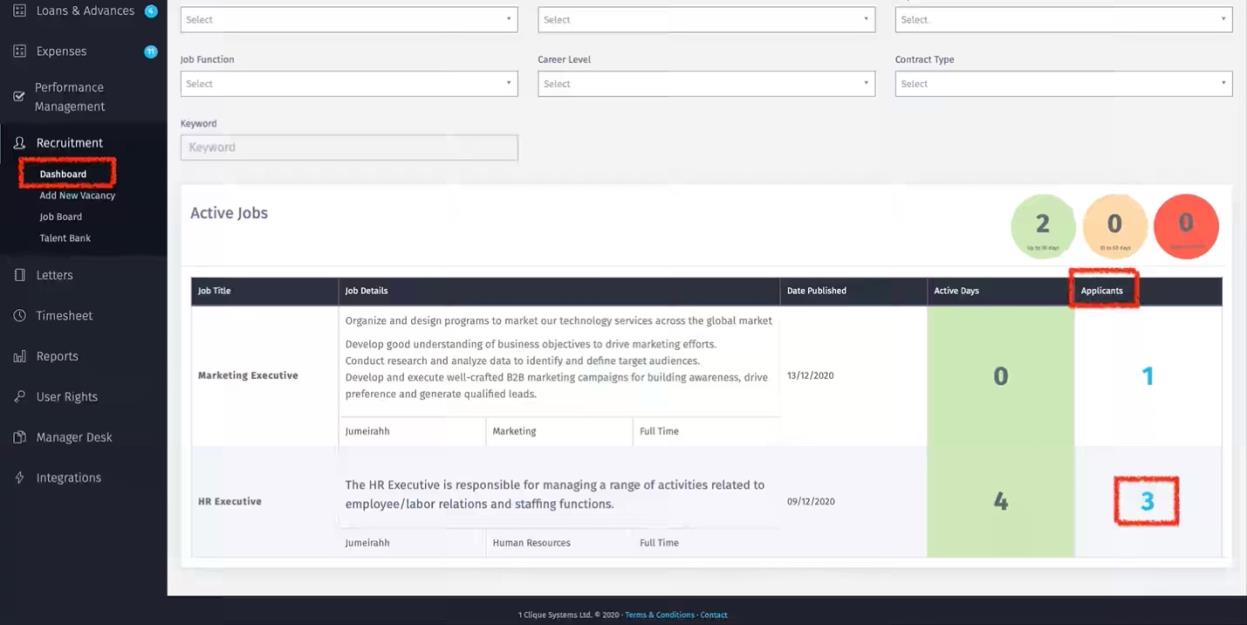
Go to Recruitment/Dashboard and click on the number of applicants pertaining to that job
(2) Job Dashboard
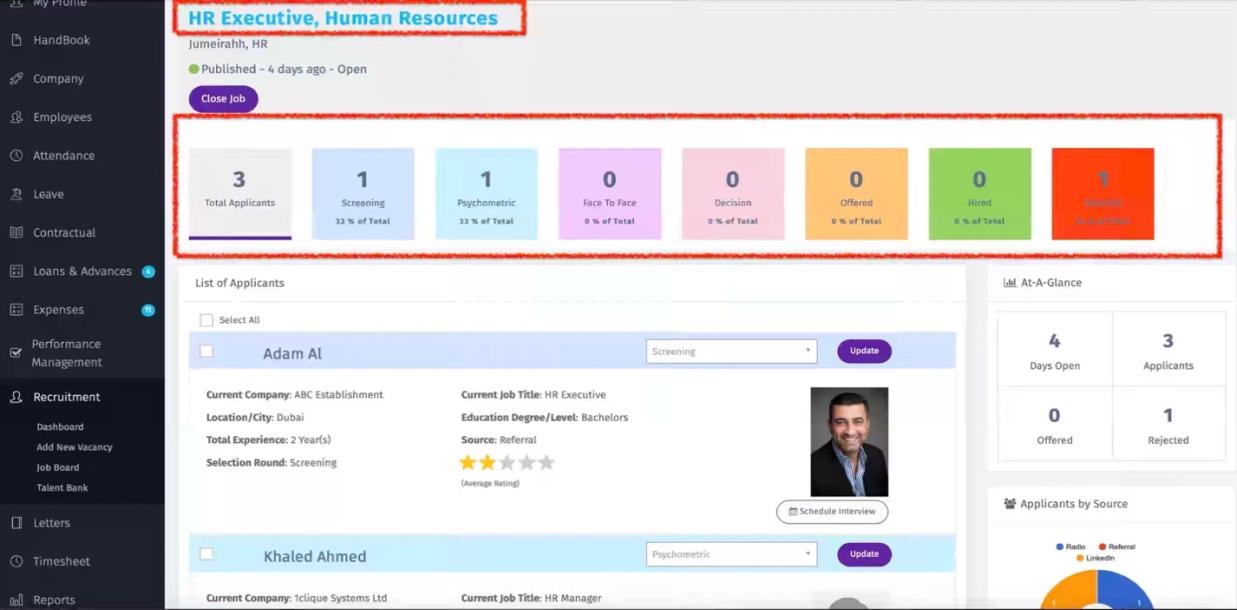
You will be directed to job dashboard where you can view:
(a) Job Title
(b) Total Number of Applicants.
(c) Total Number of Applicants in every stage of the process.
(d) List of all Applicants.
(3) Applicant Details
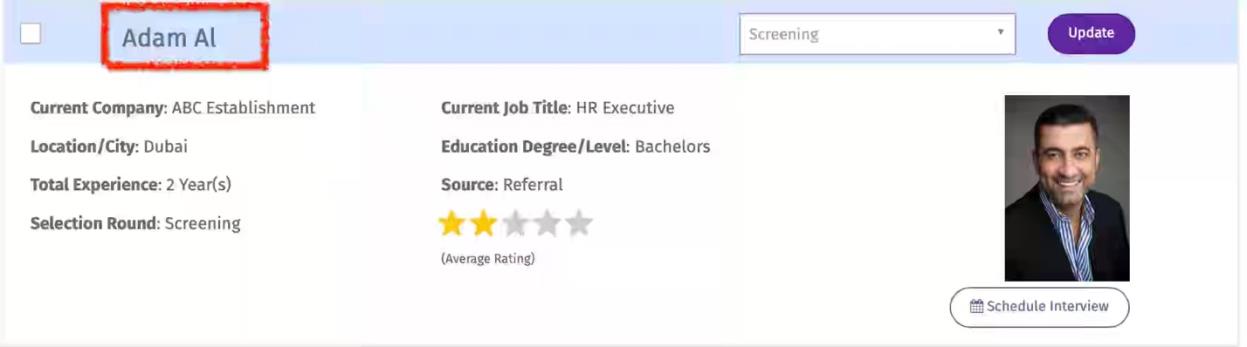
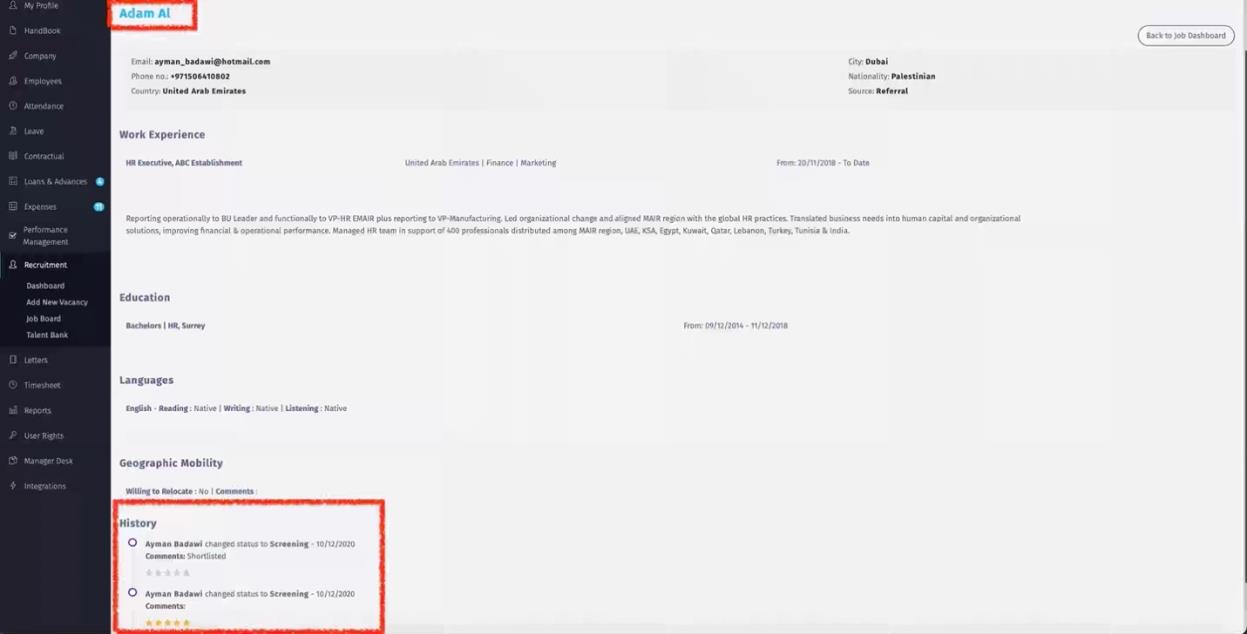
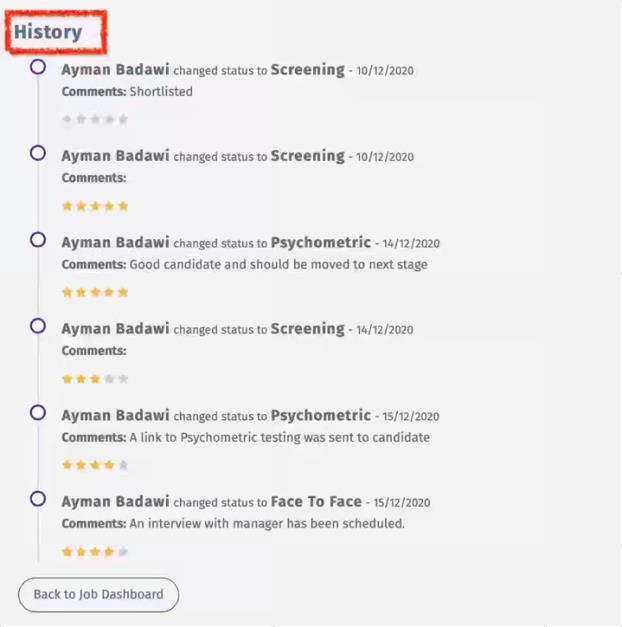
To View Candidate full details and Application history, you need to click on the name of the applicant.
(4) Progress to next stage
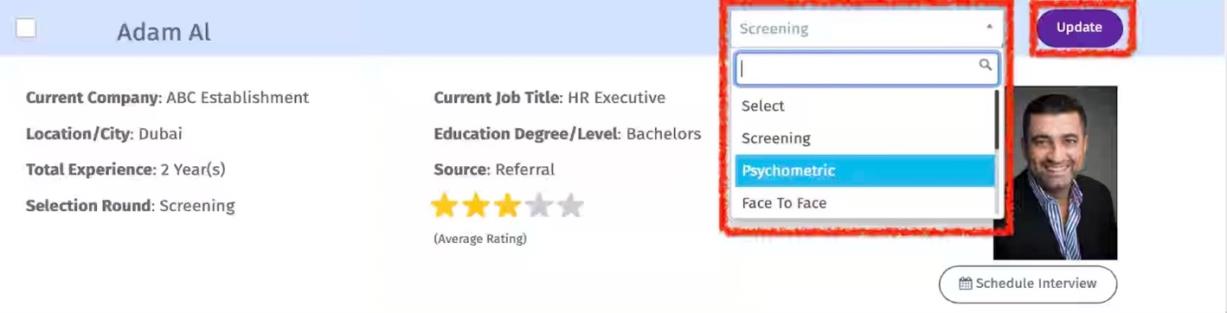
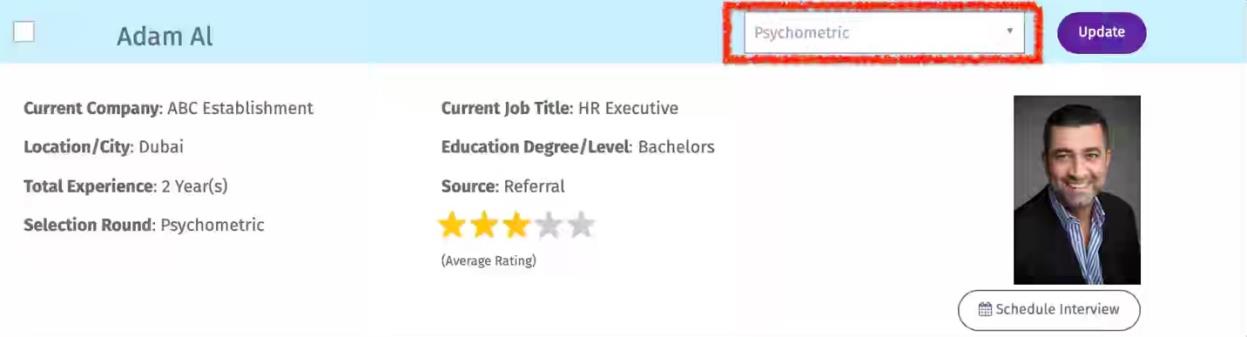
To move applicant from one stage to another in the recruitment process, click on the drop-down field, select the stage and then click update
(5) Applicant Rating
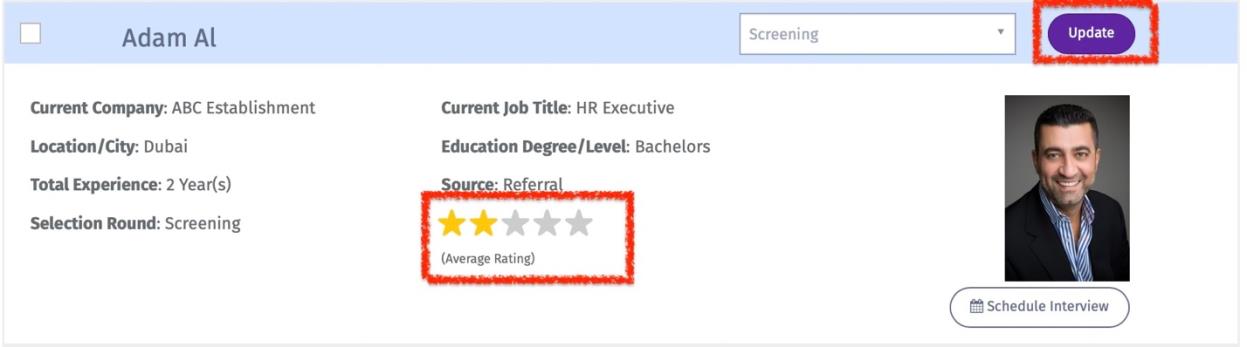
The platform will provide average rating of the candidate based on the number of Raters per stage. To give a rating to the candidate, hover over the stars and select the desired rating then click on update.
(6) Schedule Interview
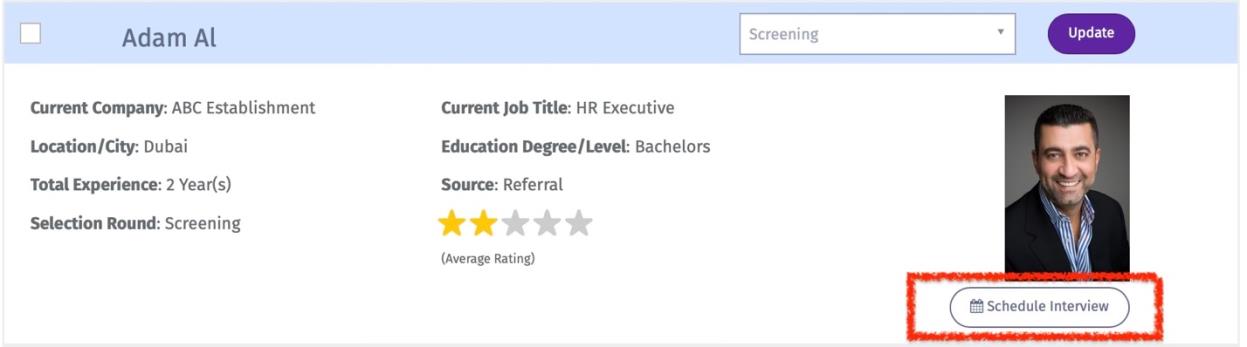
To schedule an interview with the candidate:
(a) click on ‘Schedule Interview”.
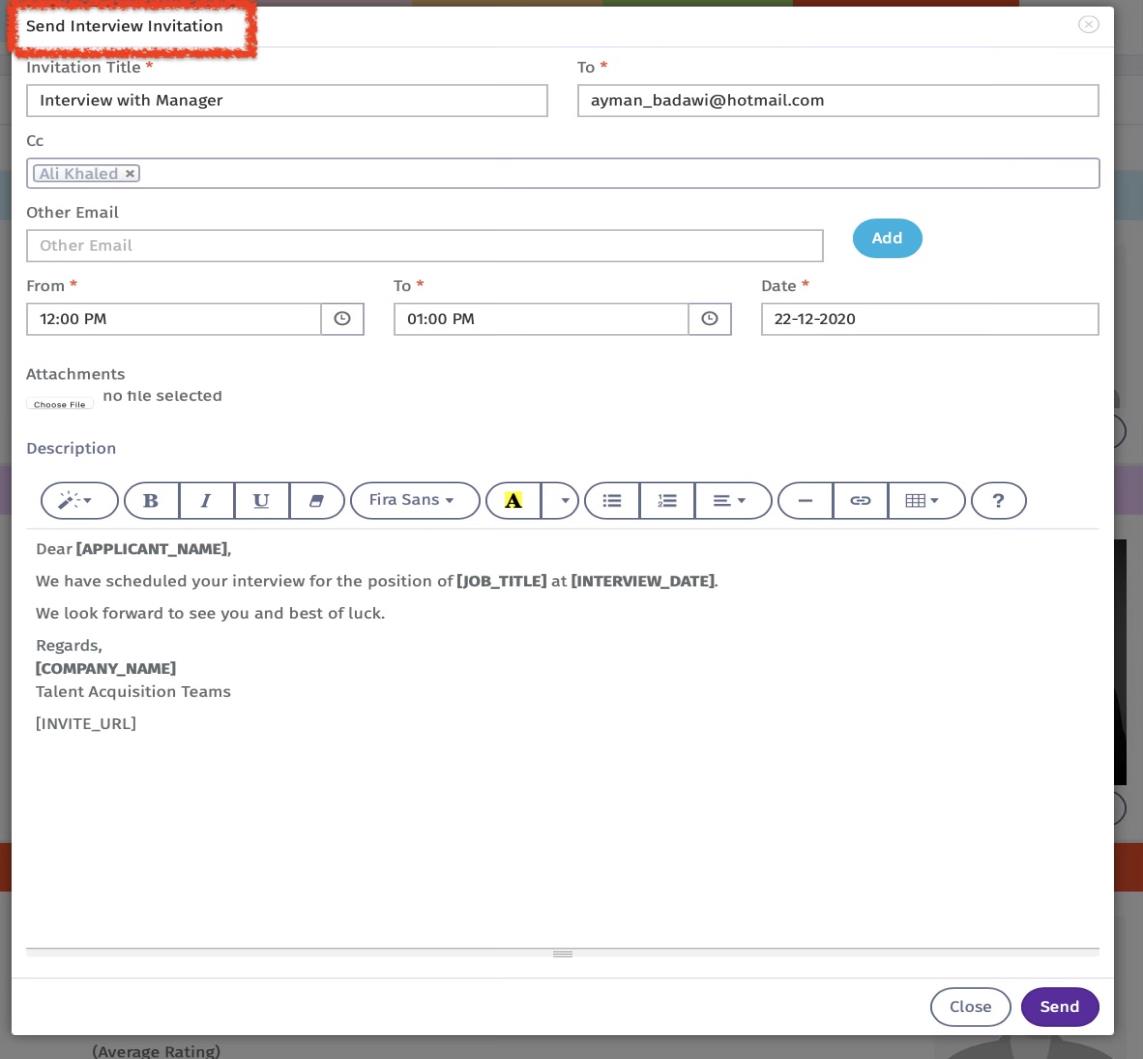
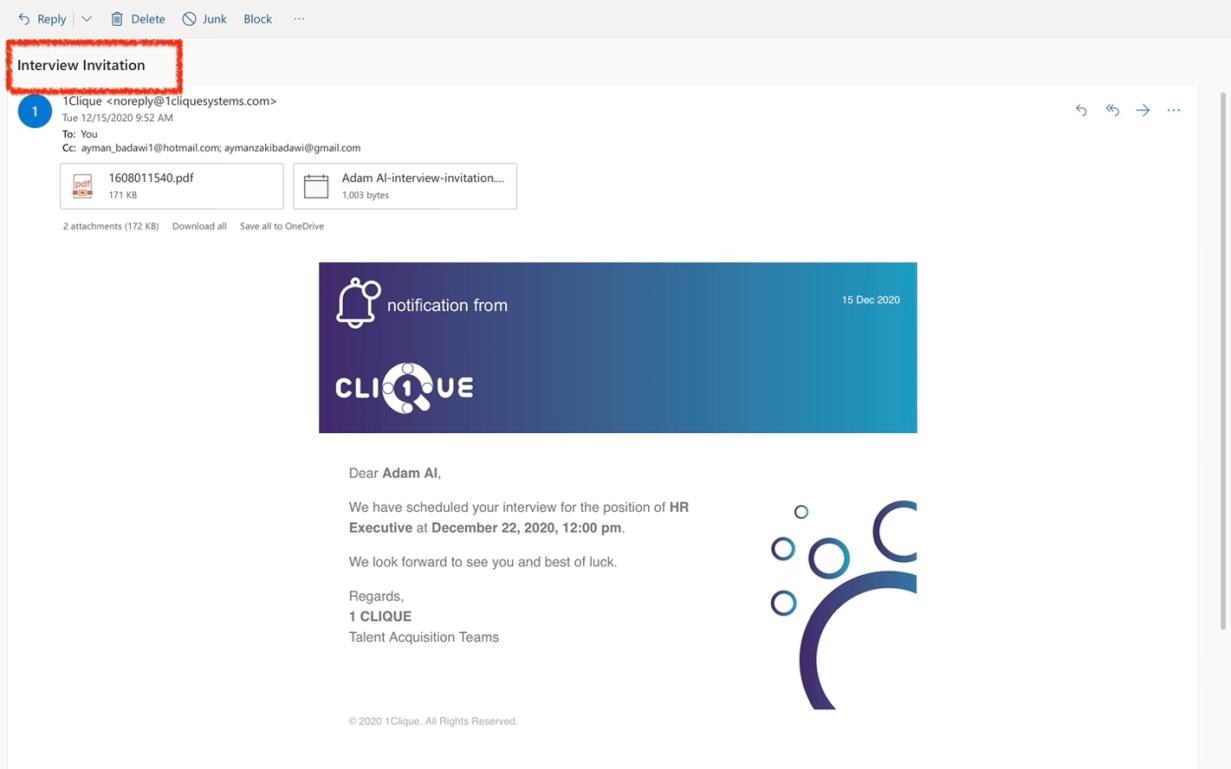
 (b) An email format Pop-Up screen will appear.
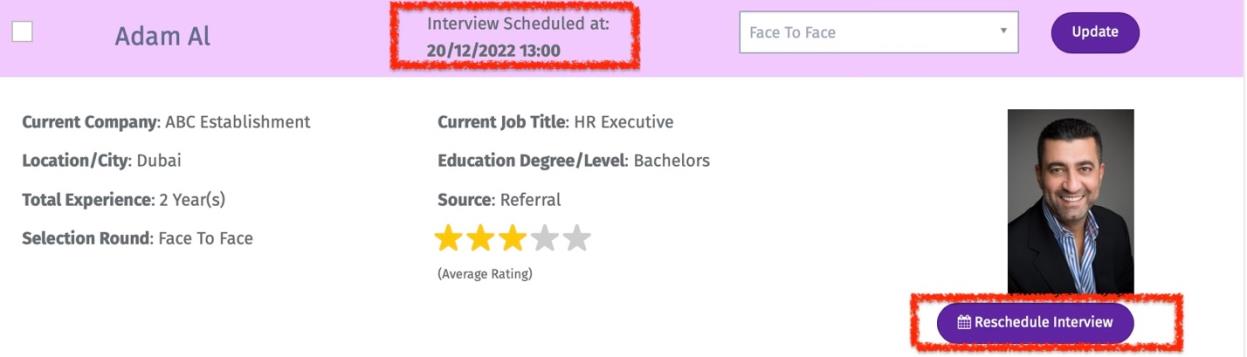
 (c) The date and time of the interview will appear next to candidate name. Also, you can reschedule the meeting by clicking on “reschedule Interview”
 (d) Candidate & all copied will receive the invitation by email
(7) Send Offer to candidate
To send an offer to candidate
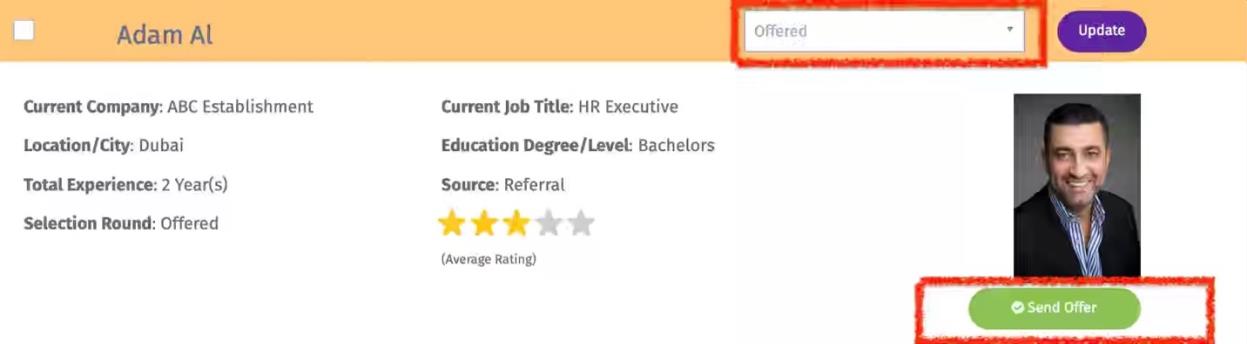
(a) Change the status to ‘Offered” then update.
(b) A “Send Offer” button will appear. Click on it to prepare the offer.
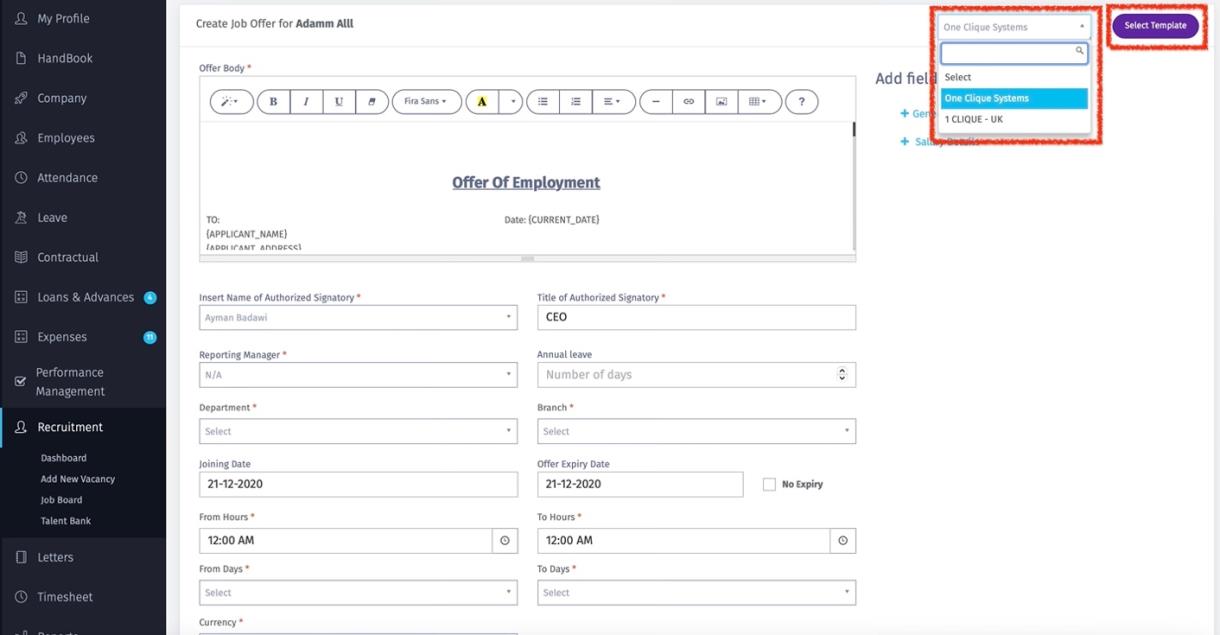
 (c) Select offer template and click on “Select Template”.
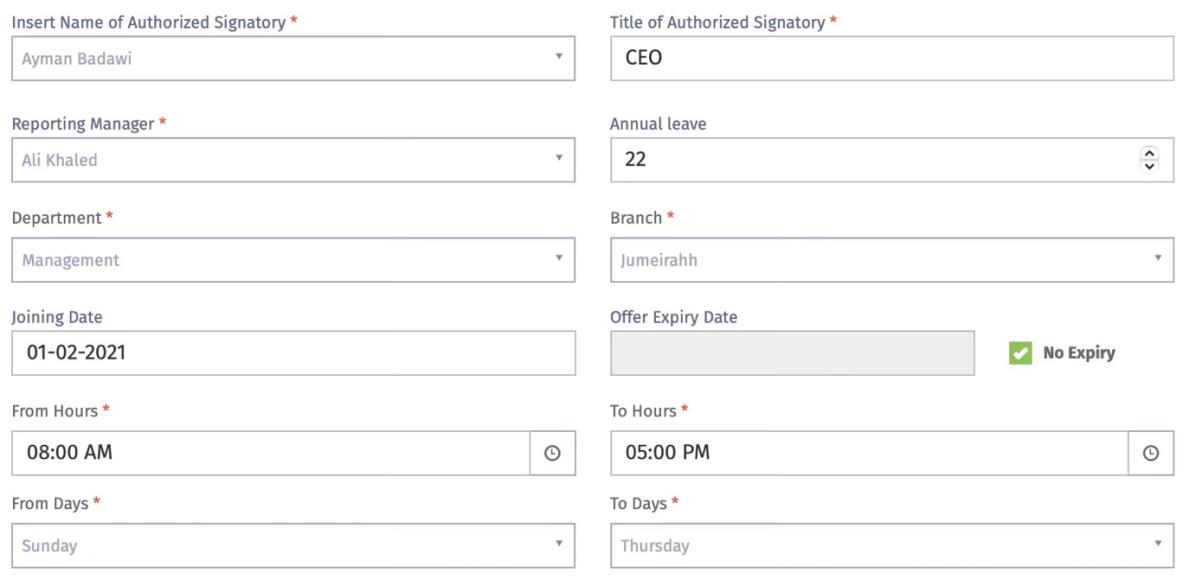
 (d) Use the provided fields to amend the job offer body content.
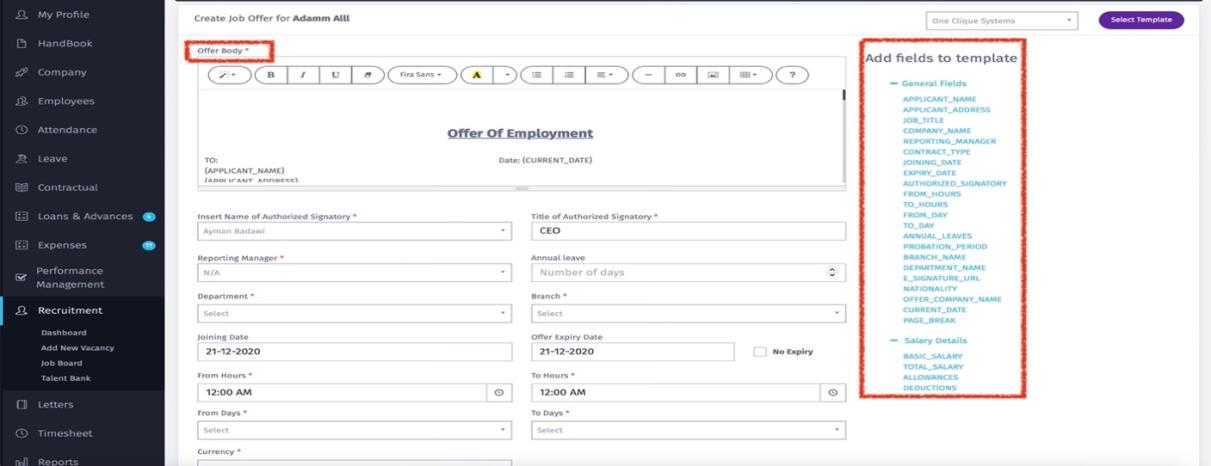 (e) All the data that is entered/selected in these fields will be add to the candidate’s Offer based on the selected template.
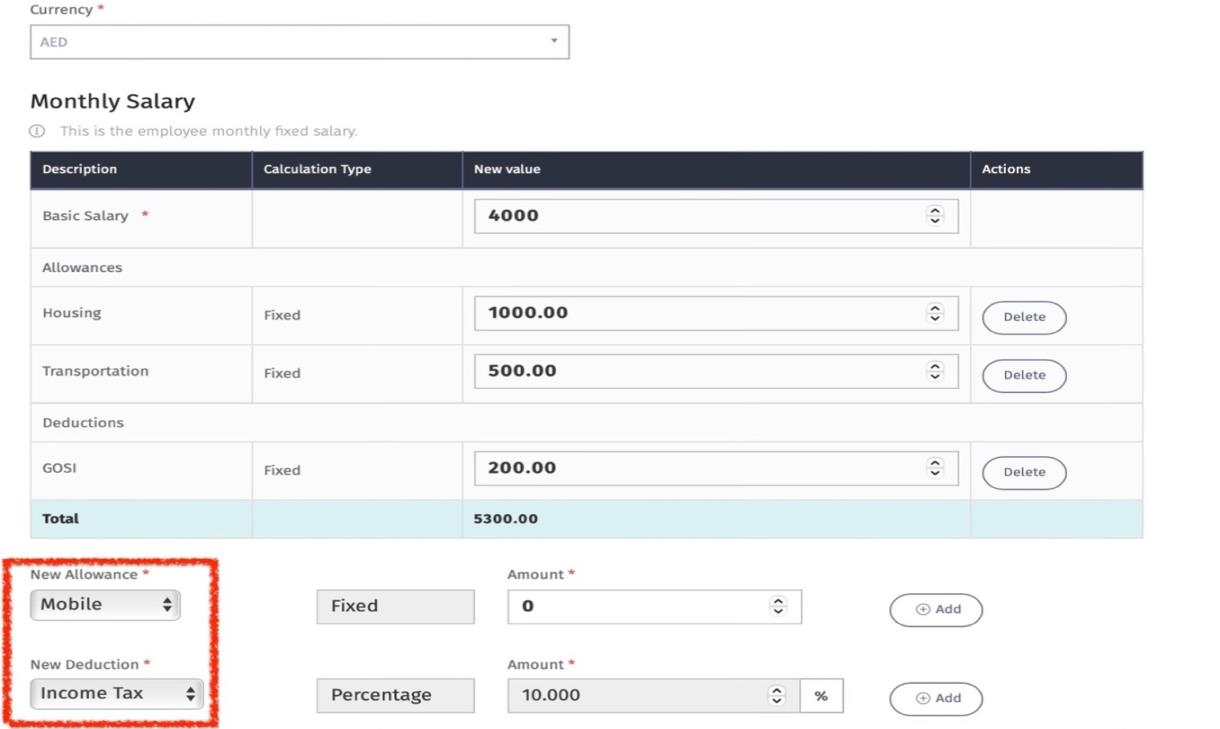
 (f) All pay elements provided are based on Allowances & Deductions available in Company/Allowance & Deductions. Enter the amounts for every pay element so it will be populated in the offer.
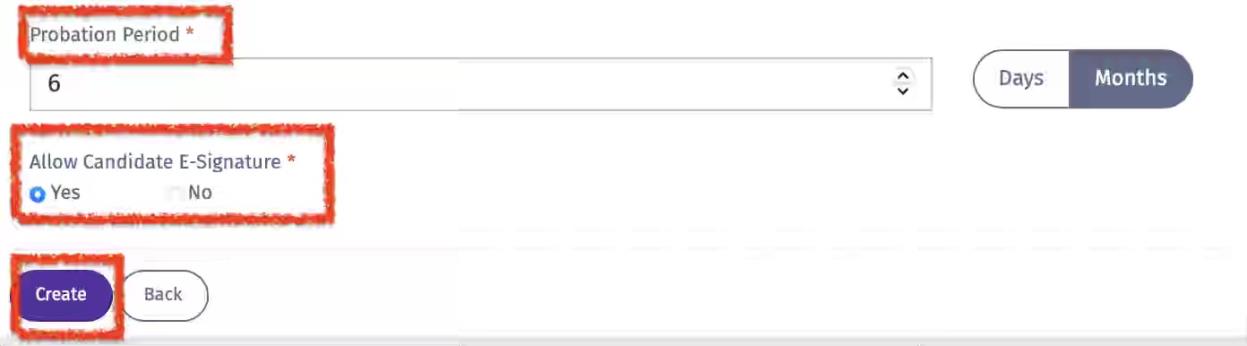
 (g) Add the probation period by Day or Month
(h) Enable the candidate to accept the offer using E-Signature provided with the offer.
(i) Click on ‘Create” to generate the offer
 (j) A “Created Successfully” message will appear.
(k) Click on View Offer to review before sending it to candidate.
 (l) Click on “Preview Offer” to view the offer in PDF format
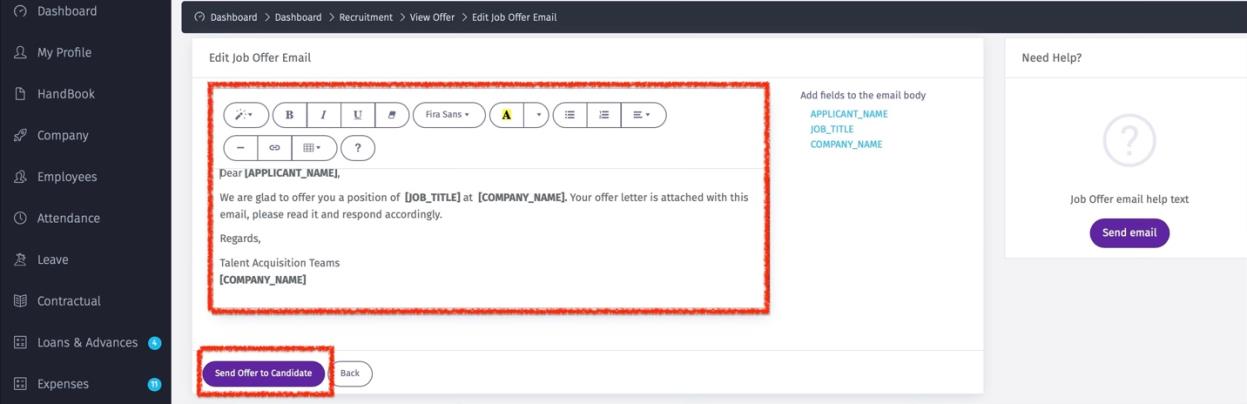
 (m) To edit Email content of the offer:
(i) click on “Send & edit Email Template”
 (ii) An email template will appear. Edit and then click on “Send Offer to Candidate”
 (n) To send the offer to candidate:
(i) Click on ‘send Offer to Candidate”
 (ii) “Sent Successfully” message will appear
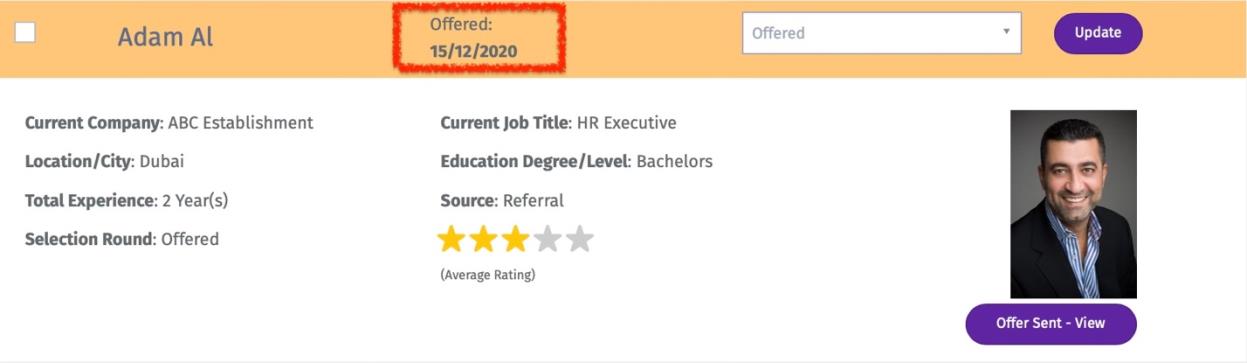
 (iii) The date that the offer was sent will appear next to employee name.
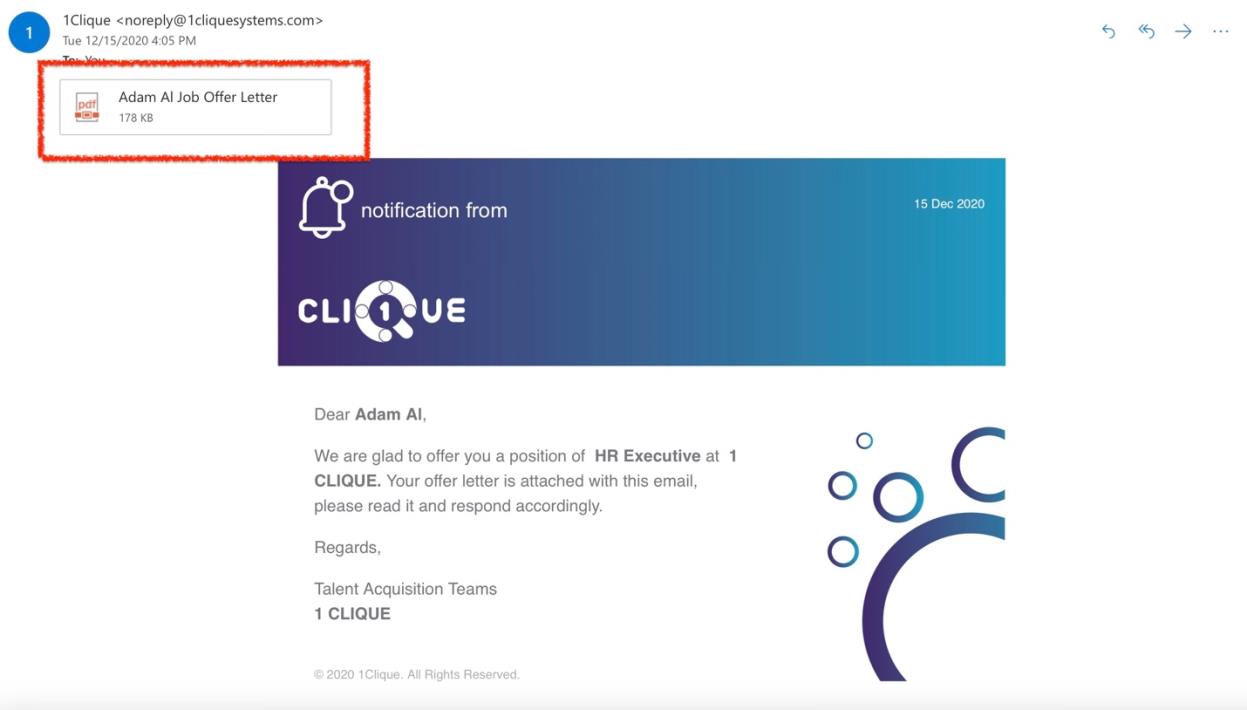
 (iv) The candidate will receive an email with the offer attached.
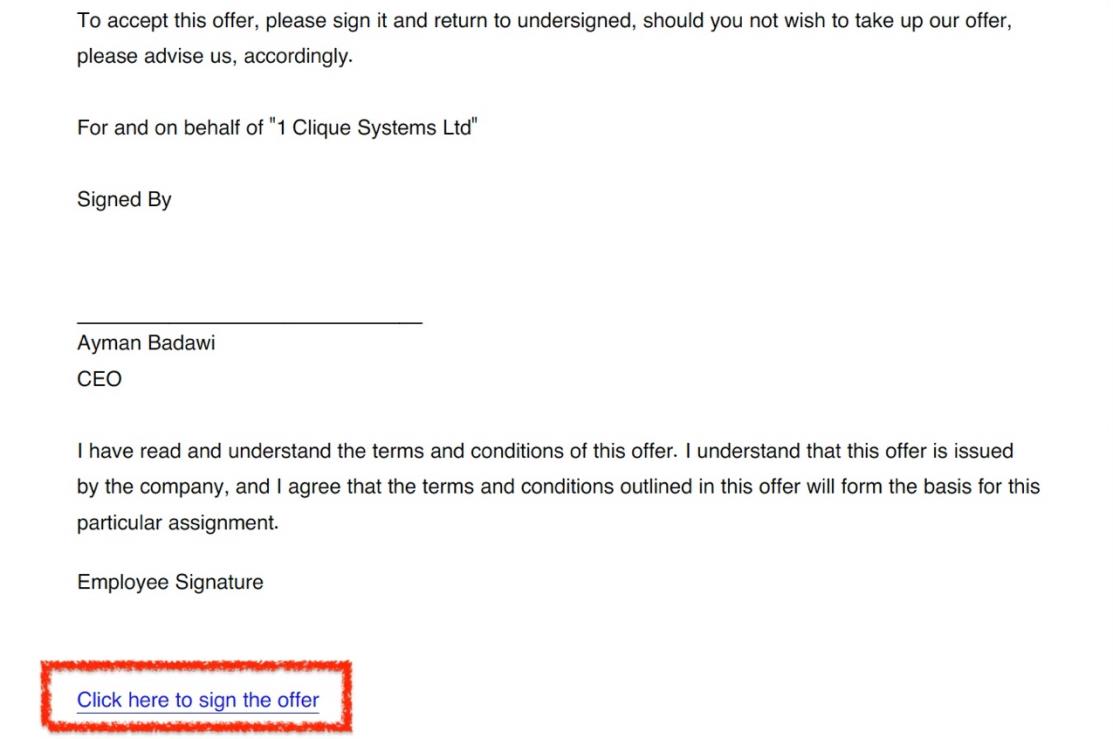
 (v) The candidate can download the offer and confirm acceptance by signing online, if e-signature is enabled.
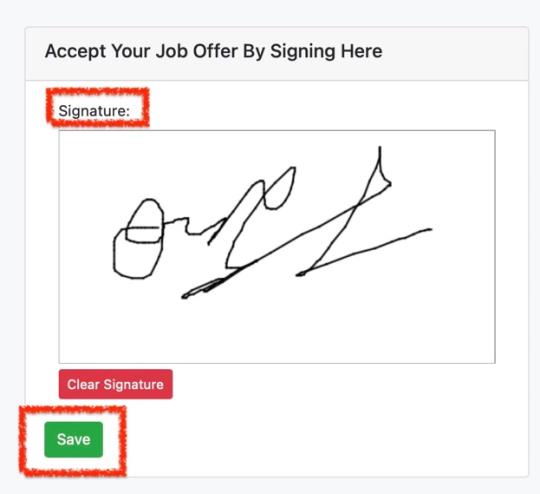
 (vi) An online e-Signature Pop-Up will appear for the candidate to sign. The candidate can sign and click on save to confirm acceptance.
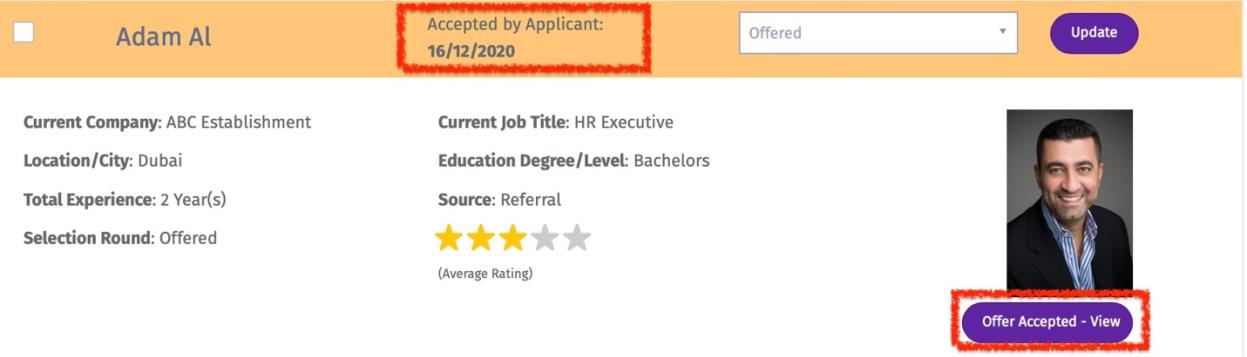
 (vii) The manager will receive a notification and the status of the offer will be displayed next to Candidate’s name.
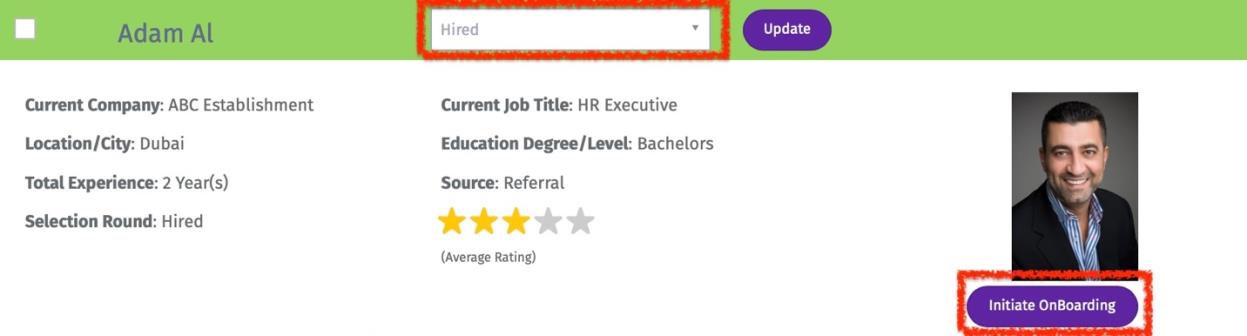
 (viii) To finalize this stage, change the status to “Hired” so you can initiate an onboarding process.
(8) Onboarding hired candidate
To initiate the on boarding process for a hired candidate:
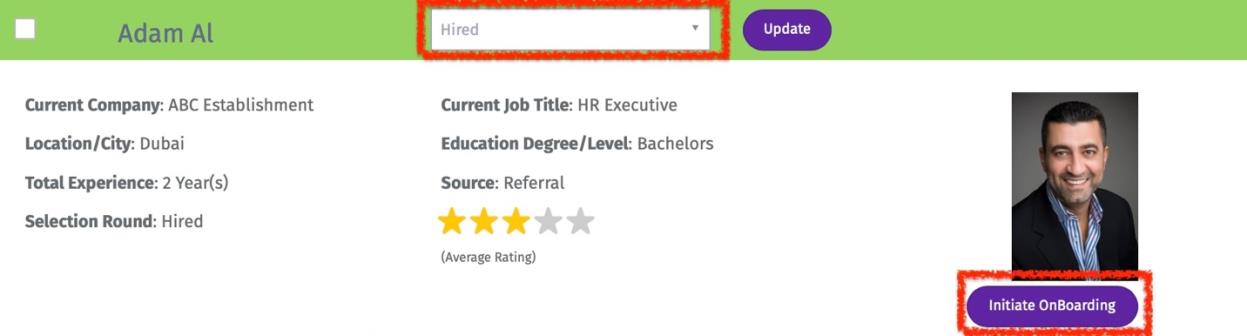
(a) Change the candidate status to “Hired” and click on “Update”
(b) An “Initiate Onboarding” button will appear. Click on that button.
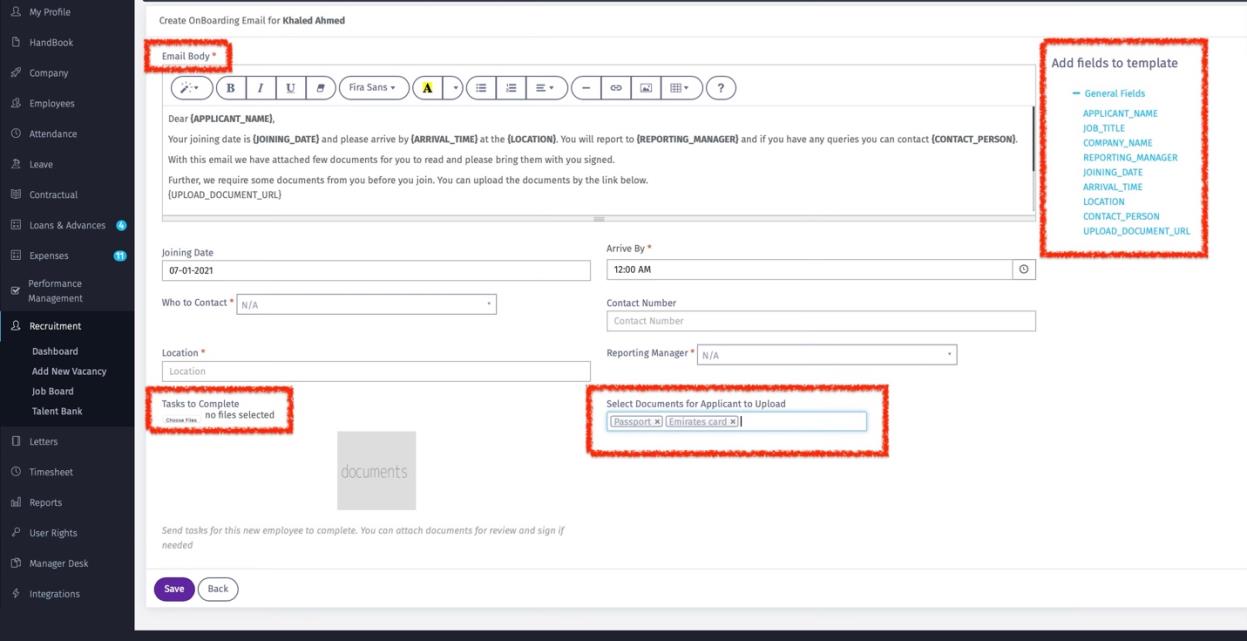
 (c) You will be directed to Onboarding email template that will be sent to the newly hired candidate.
(d) In this email template you can perform the following:
(i) Modify the Email body using “Add Field to template” options.
(ii) Attach documents for Candidates to review/sign.
(iii) Request from candidate to submit documents.
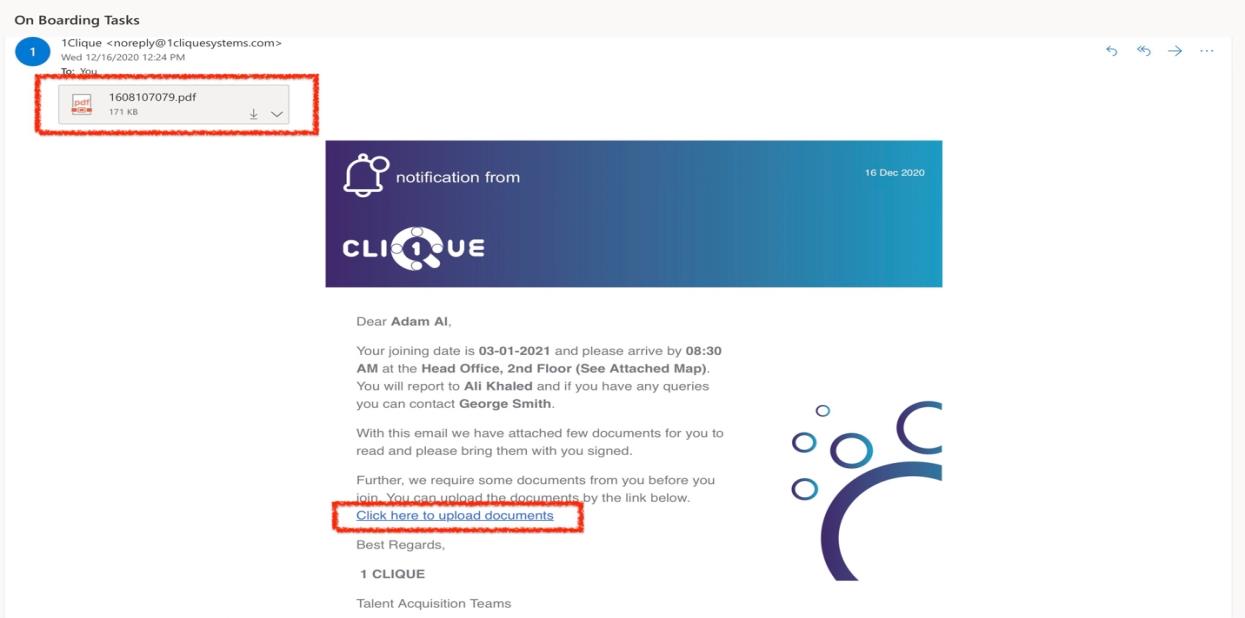
 (e) Once completed, the candidate will receive an email with the following:
(i) Details of joining date, reporting manager and contact person.
(ii) Attachments
(iii) Link to upload requested documents.
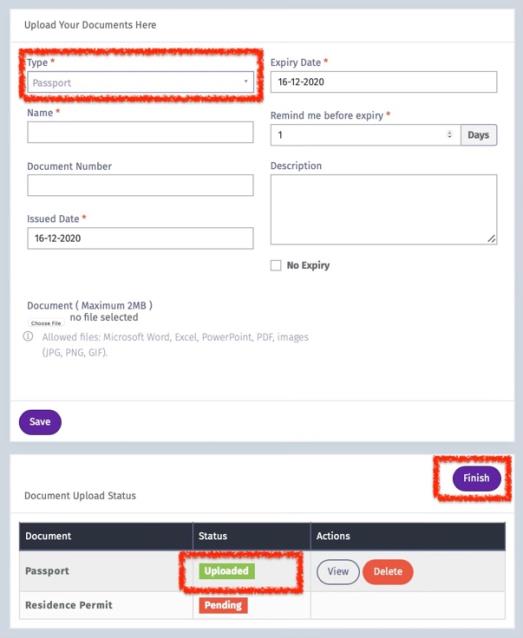
 (iv) When candidate click on the link, the candidate will be prompted with an online screen to upload documents.
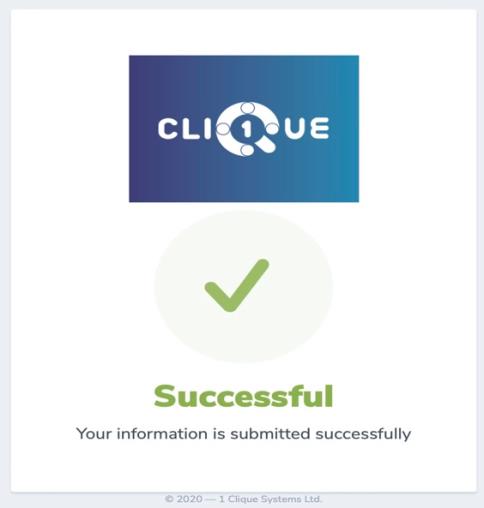
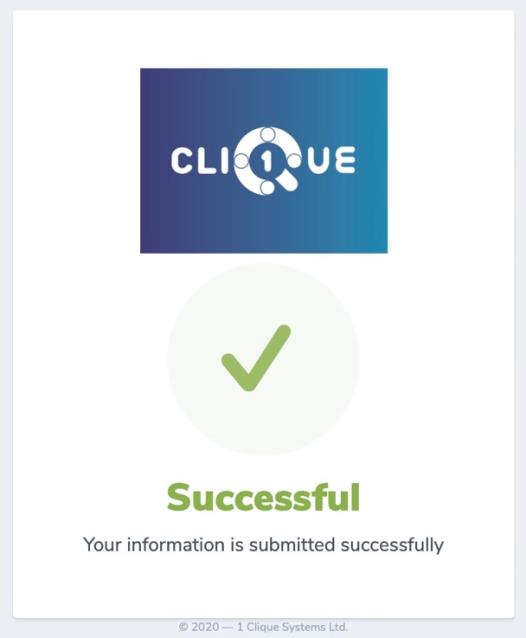
(v) Once all requested documents are uploaded, then candidate will click on “Finish” and a message “Successful” will appear.
(9) Covert Hired candidate to an Employee
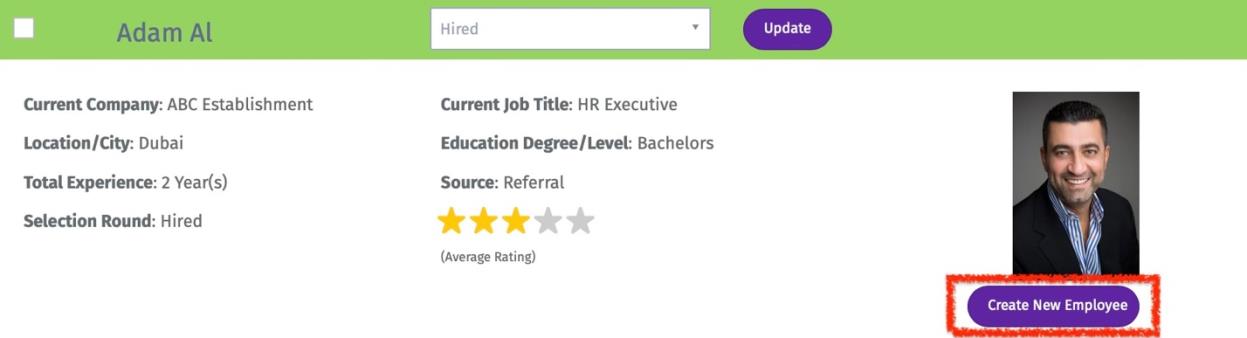
Once the Onboarding for hired candidates is completed then you can convert candidate to an employee by clicking on “Create New Employee” button.
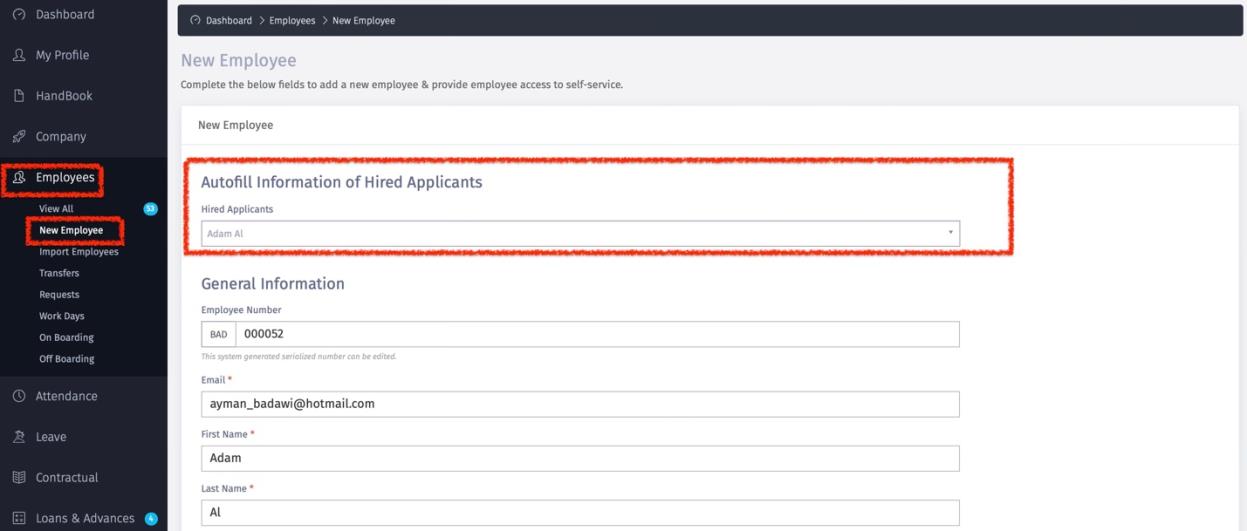
 (a) You will be directed to “Add New Employee”, where all the data of the candidates will be populated.
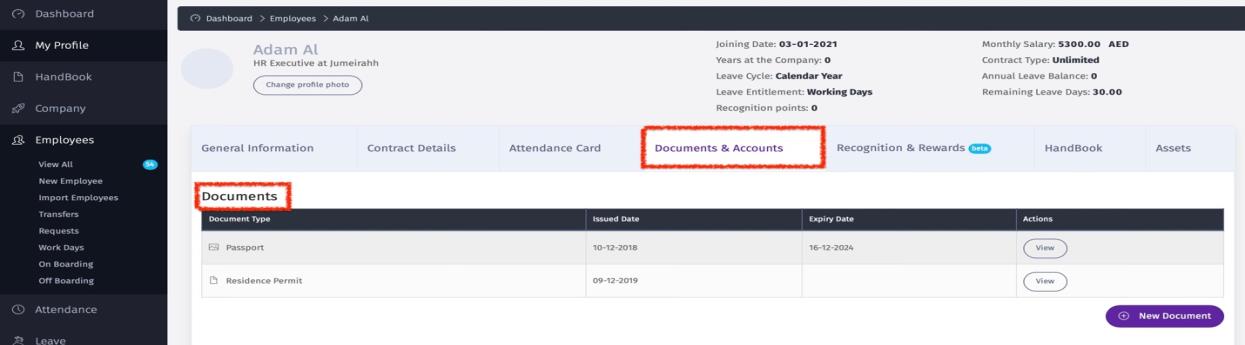
 (b) Once the employee is added, all documents submitted by the candidate will be saved employee profiler under Documents.
(10) Internal Onboarding
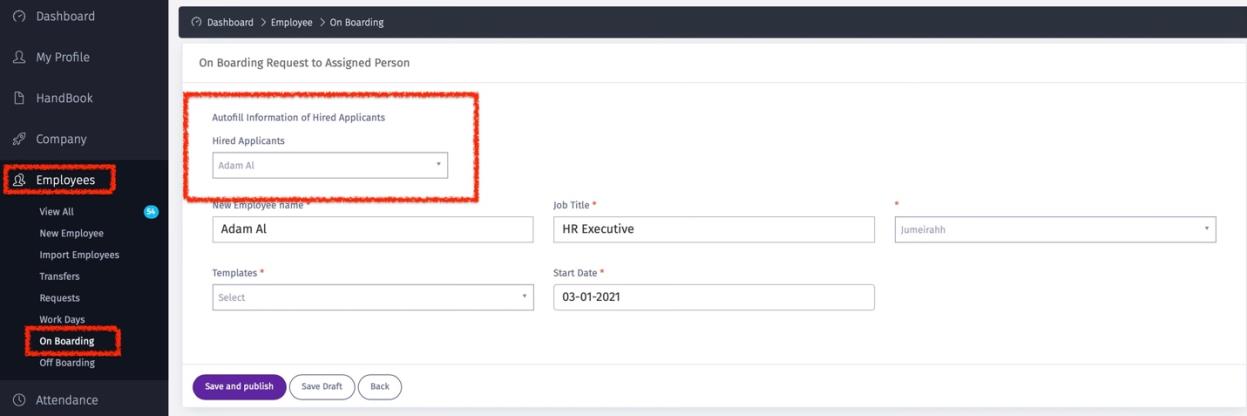
To initiate an internal onboarding process for newly hired employee, go to Employees/onboarding and select the candidate name.