Attendance Configuration Setup
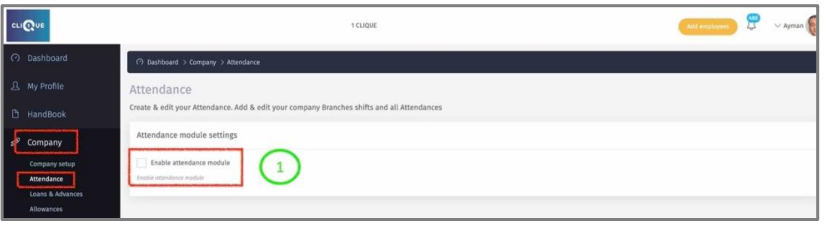
1 – Click on “Enable Attendance Module”.
2 – View & Edit existing Shifts.
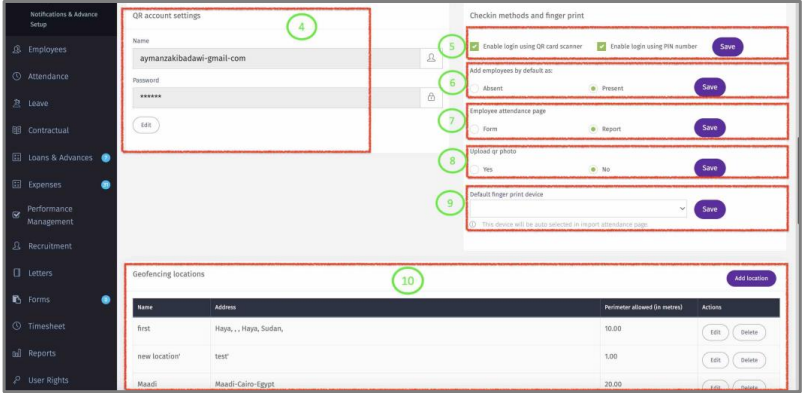
3 – Create a Shift.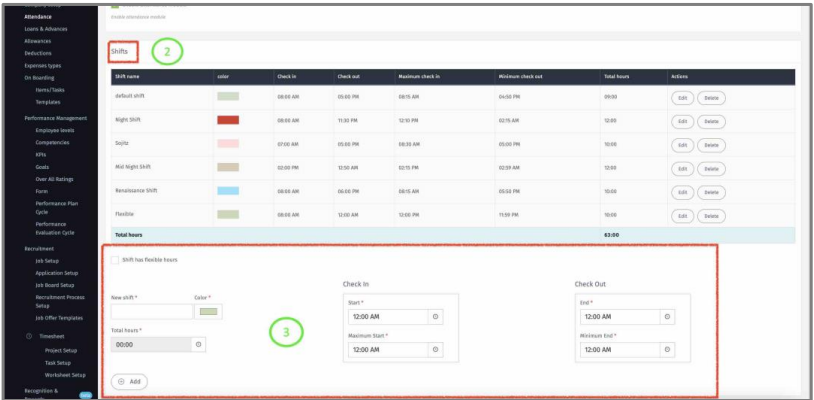 4 – Username & Password to login to the Attendance App (QR reader & Pin). Go to
mobile stores and download “1Clique Attendance” App.
4 – Username & Password to login to the Attendance App (QR reader & Pin). Go to
mobile stores and download “1Clique Attendance” App.
5 – Check the box(s) to enable employees to Check-In/Out using QR code and or Pin
Number. The QR code & The Pin number can be found in Employee profile/Attendance
card or in their “1Clique ESS “mobile app.
6 – Check the Box if the employee should be considered Absent or Present as a default in
the daily attendance.
7 – Check the box to allow employee to Check in/Out using the page On the Web version
Form Or View attendance History “Report”.
8 – Check the box to setup the “1Clique Attendance” App to take a photo of employee by
default while Checking In/Out.
9 – Select default Fingerprint device. This device will be auto selected in Import
Attendance page.
10 – Geofencing Location: Create & Edit office locations that will be used for Check In/out in “1Clique ESS” Mobile App.