Job Offer Setup
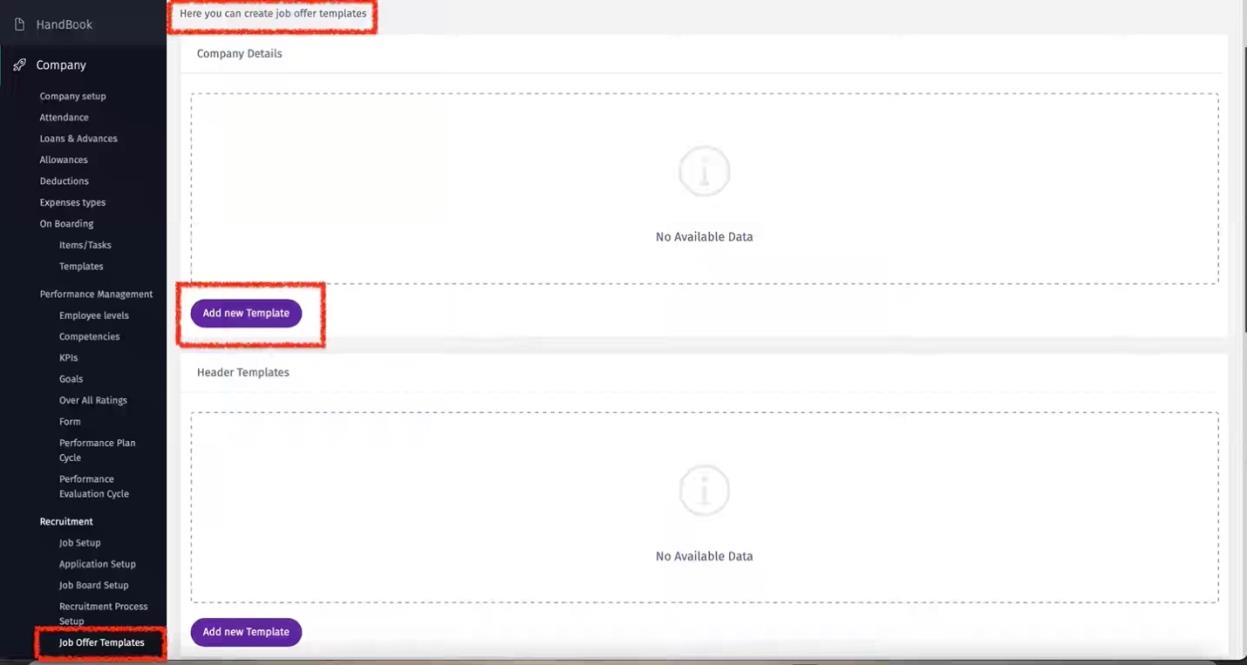
Here you can create multiple job offer templates.
Multiple Company Details
Create multiple company details (Legal Entities).
a. Click on "Add New Template"
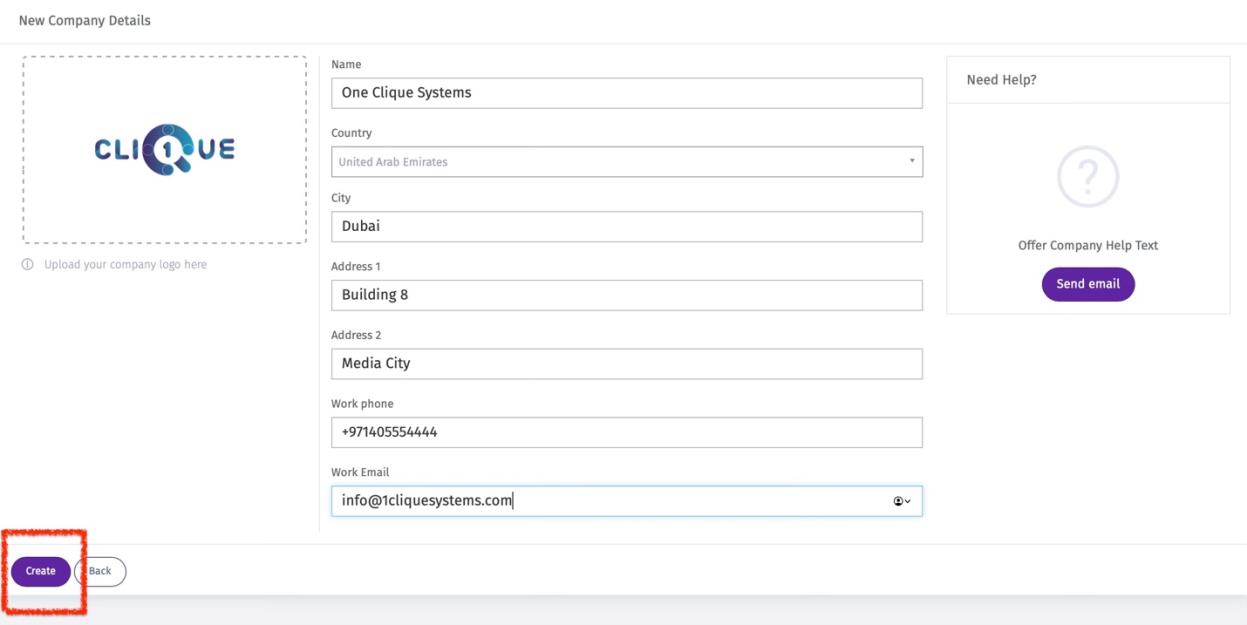
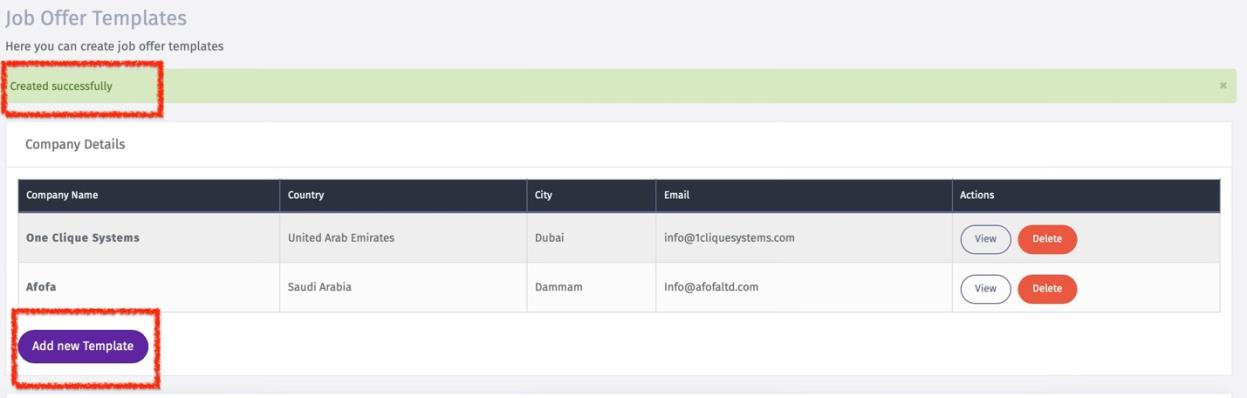
b. Upload the logo and add all details pertaining to the company or legal entity.
Header Template
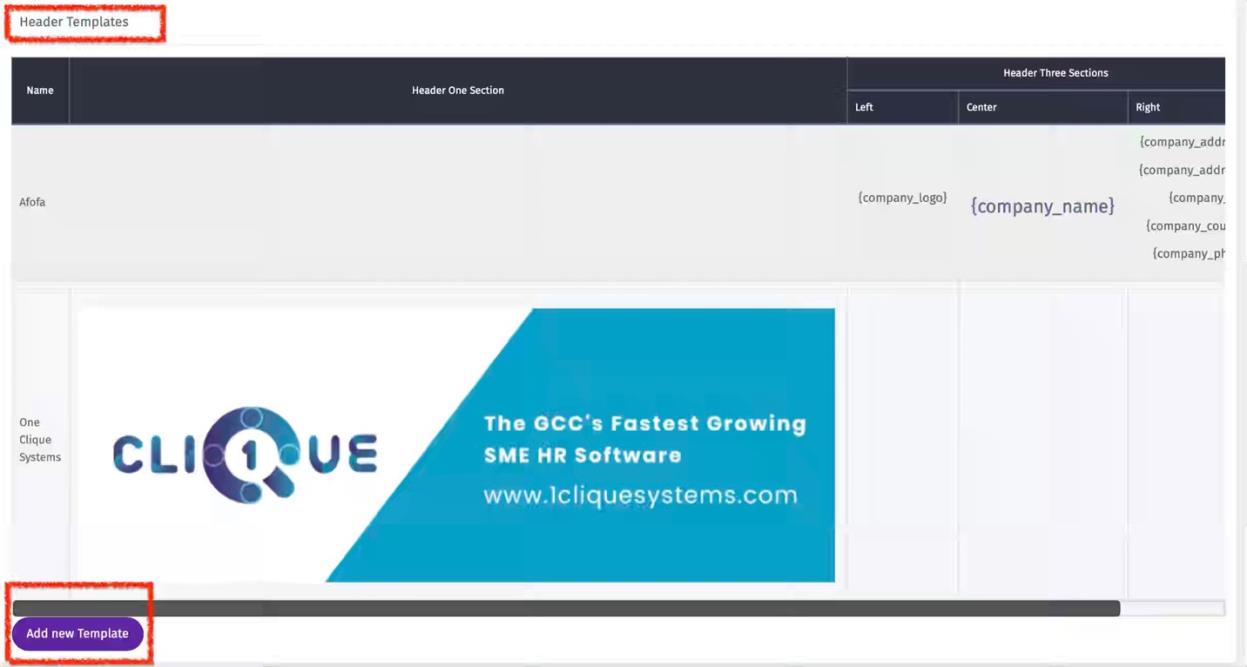
Create multiply header templates with two different styles
a. Click on “Add New Template”
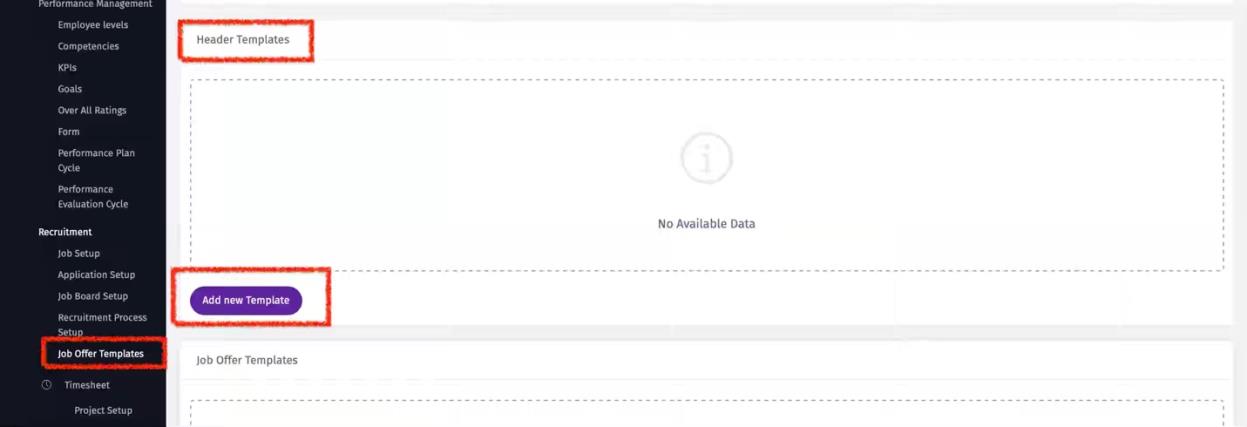 b. Give this header template a name and select between:
i Header One Section
ii Header Three Sections
iii Select from the list in “Add fields to Template” all the details that should appear in the header section.
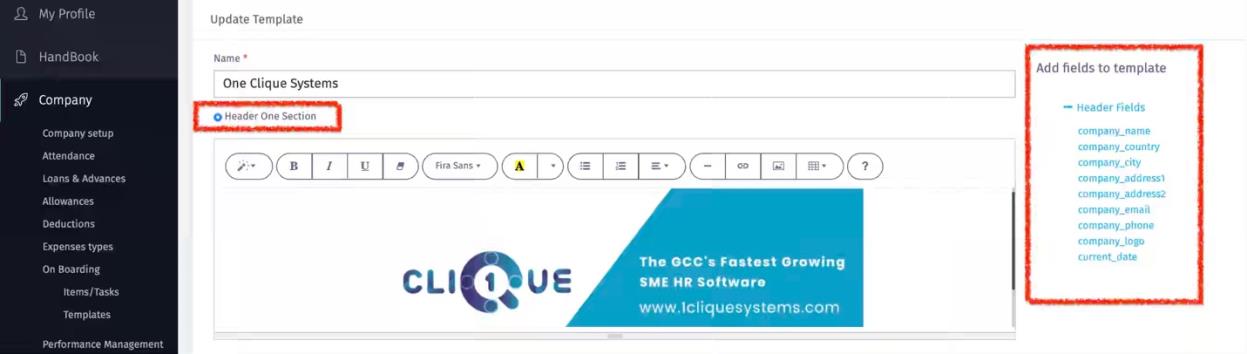
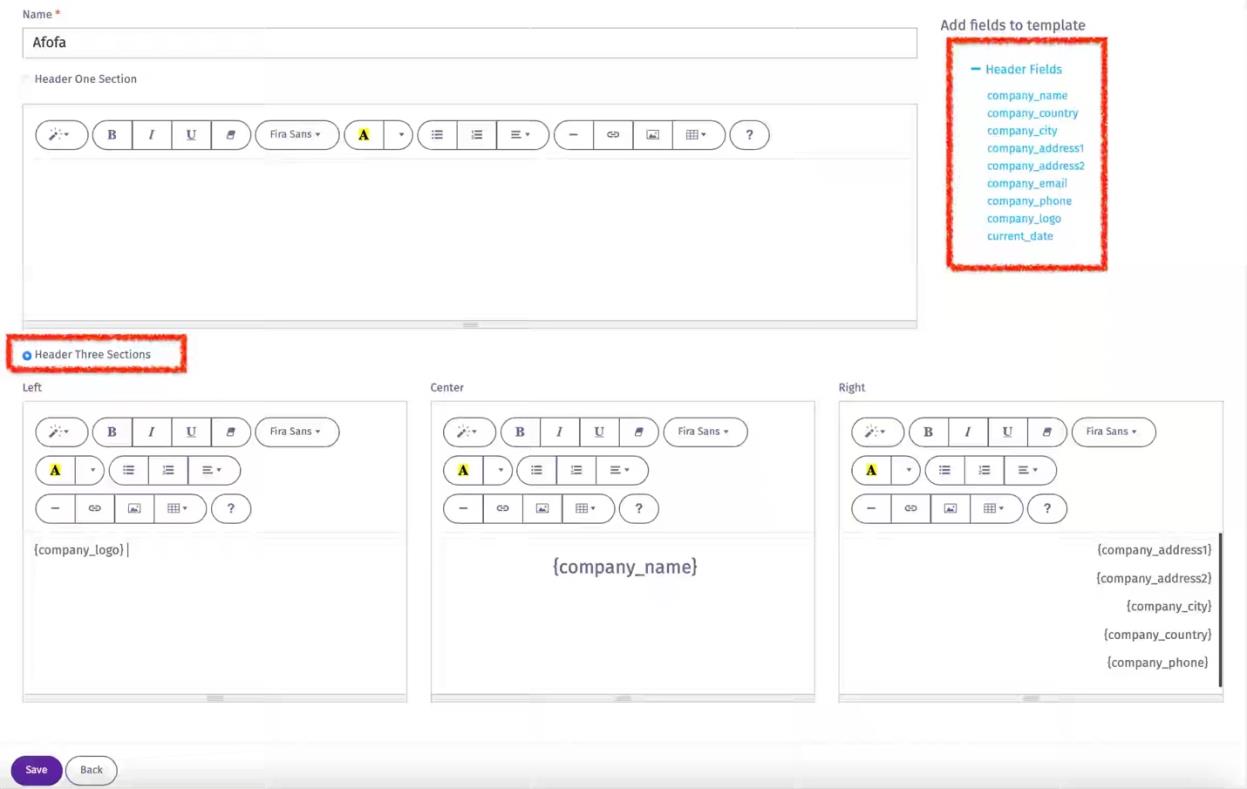
b. Give this header template a name and select between:
i Header One Section
ii Header Three Sections
iii Select from the list in “Add fields to Template” all the details that should appear in the header section.
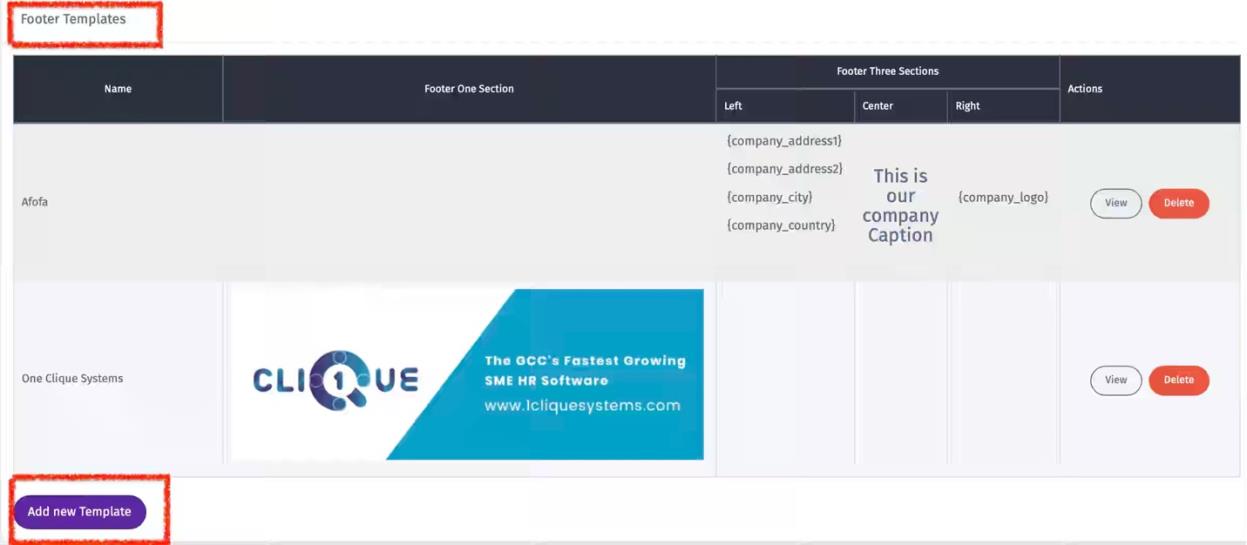
Footer Template
Create multiple footer templates with two different styles
a. Click on “Add New Template”
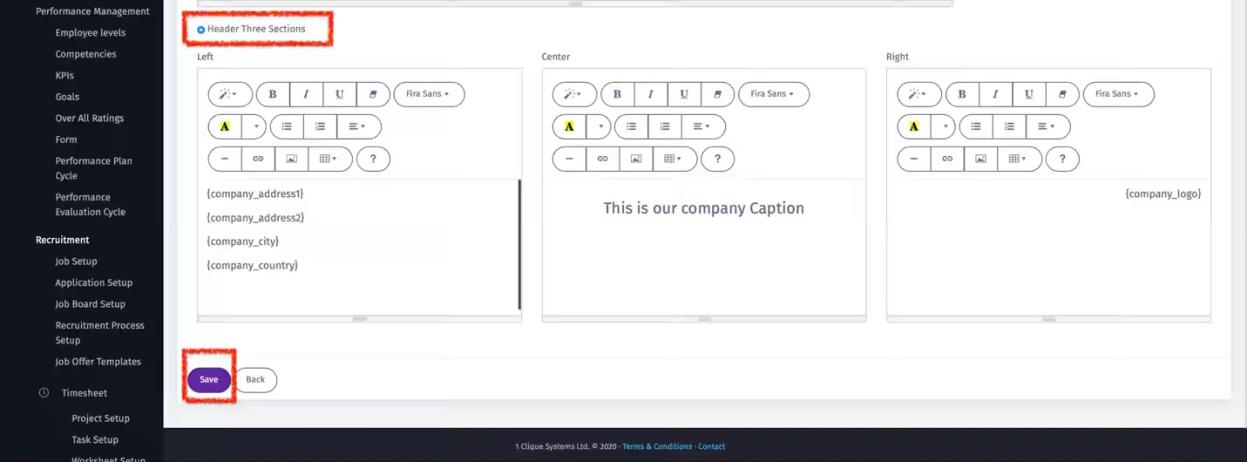
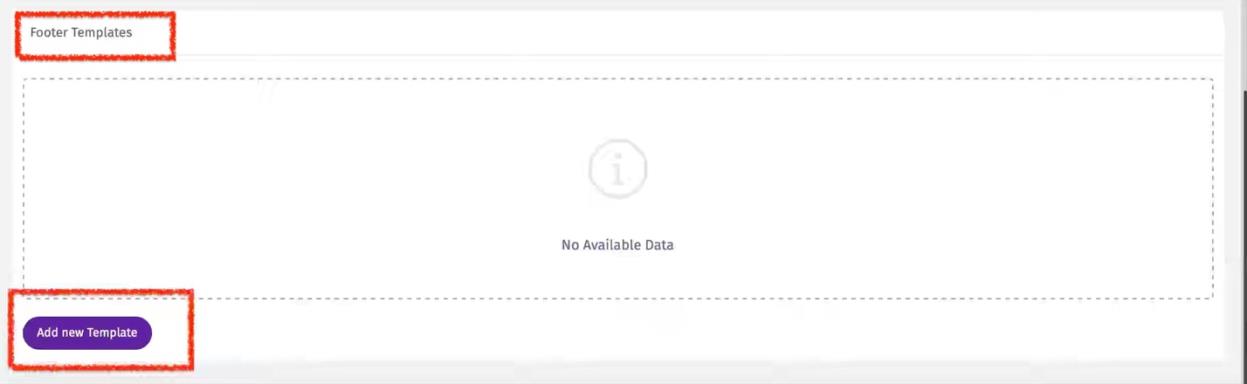 b. Give this Footer template a name and select between:
i Footer One Section
ii Footer Three Sections
iii Select from the list in “Add fields to template” all the details that should appear in the footer section.
b. Give this Footer template a name and select between:
i Footer One Section
ii Footer Three Sections
iii Select from the list in “Add fields to template” all the details that should appear in the footer section.

Job Offer Template
Create multiple Job Offer templates
a. Click on “Add New Template”
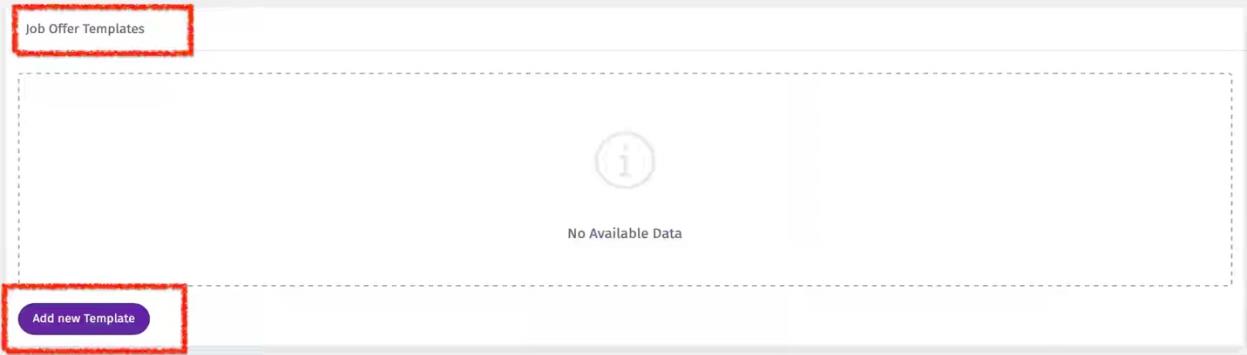 b. Give this Job Offer Template a name
c. Add the content of the offer and select from the list in “Add fields to Template” all the details that should appear in the Job Offer section.
b. Give this Job Offer Template a name
c. Add the content of the offer and select from the list in “Add fields to Template” all the details that should appear in the Job Offer section.
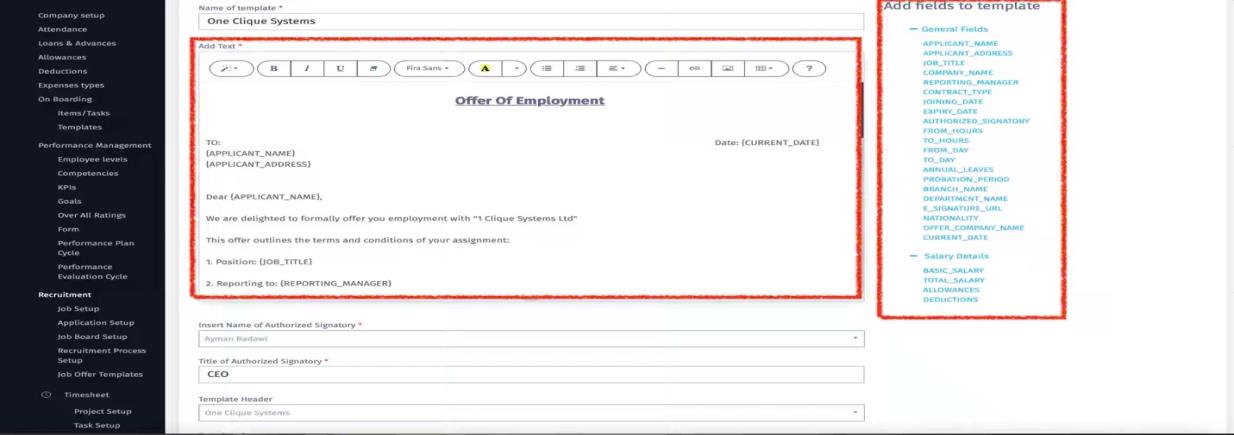
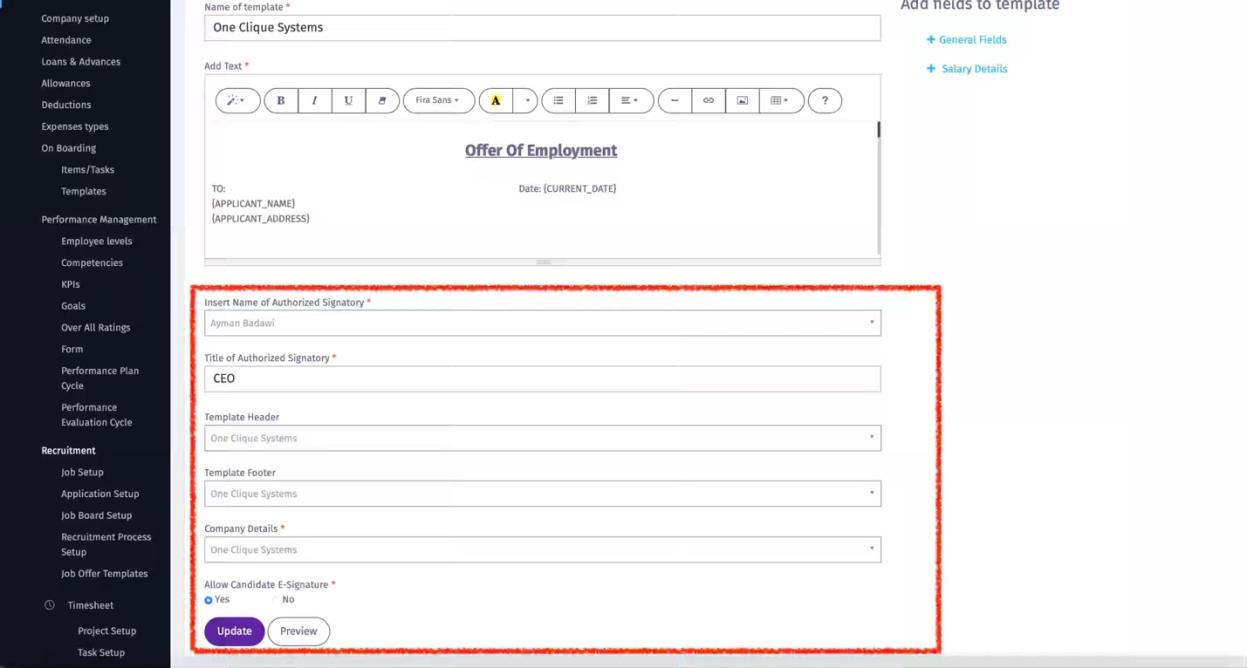
d. Complete the rest of the following fields to finalize the job offer template:
i Insert Name of Authorized Signatory: Choose from the dropdown list of all existing employees in the company.
ii Title of Authorized Signatory: Enter the Job title of the Authorized Signatory.
iii Template Header: This dropdown list will contain all the header templates that were created in the Header Template Section.
iv Template Footer: This dropdown list will contain all the footer templates that were created in the Footer template Section.
v Company Details: Select from the dropdown the company details that will be related to this job offer.
vi Allow Candidate E-Signature: If “yes” is selected then the candidate will be allowed to confirm offer acceptance with an online signature.
vii Click on “Preview” to view the full Job offer template with all the elements.